How do customers book an appointment online?
What your customers see on the booking page, what they receive, and where the booking lands for your team.
Customers book from your website — no account needed. Here is the path they take.
1. Choose a service
The Book link in your website's menu opens /book: every published service with its length, place and price. A service's Booking Link goes straight to its own page.
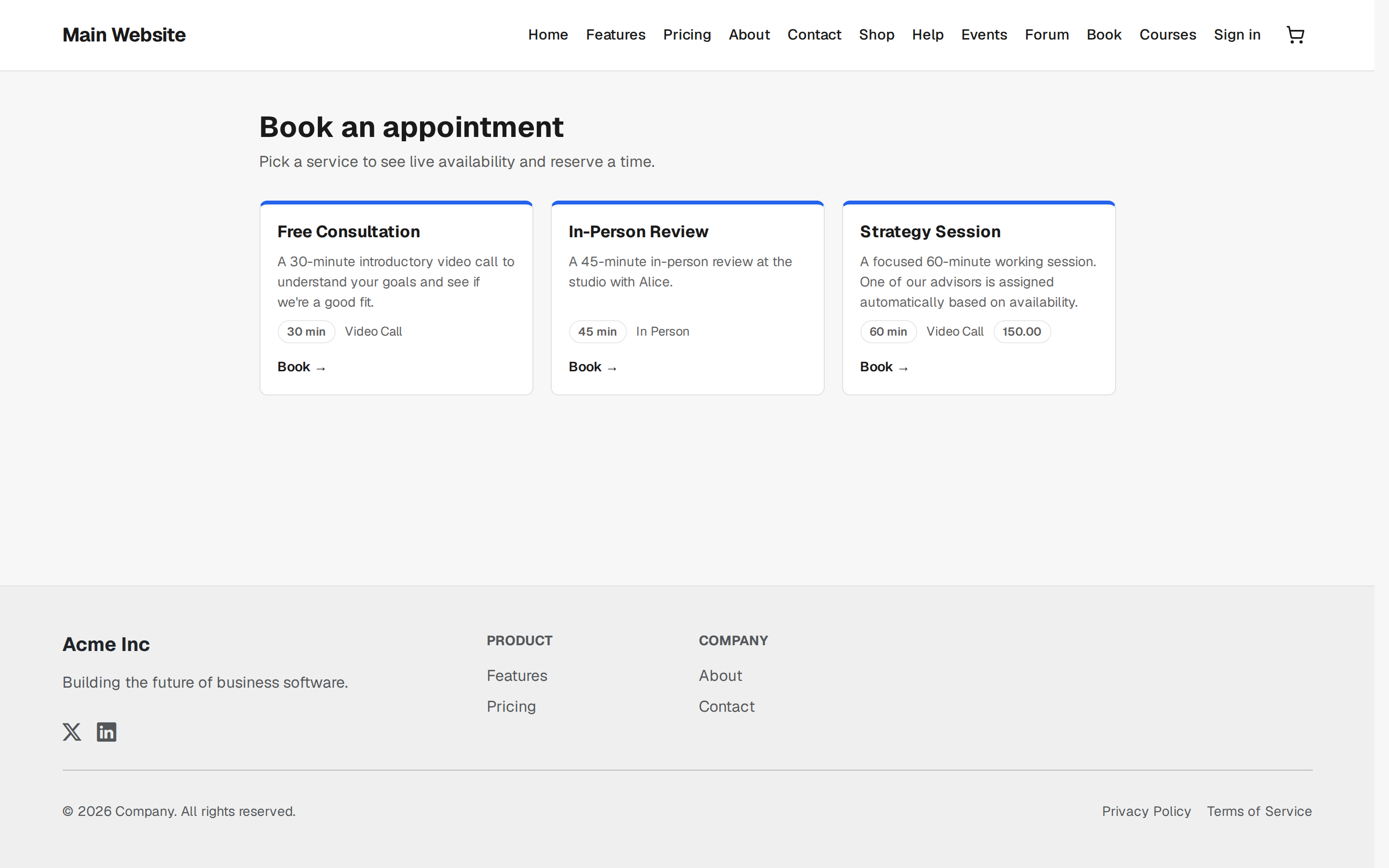
2. Pick a time
For a Chosen by Customer service, they first choose who they would like to see; the calendar opens next.
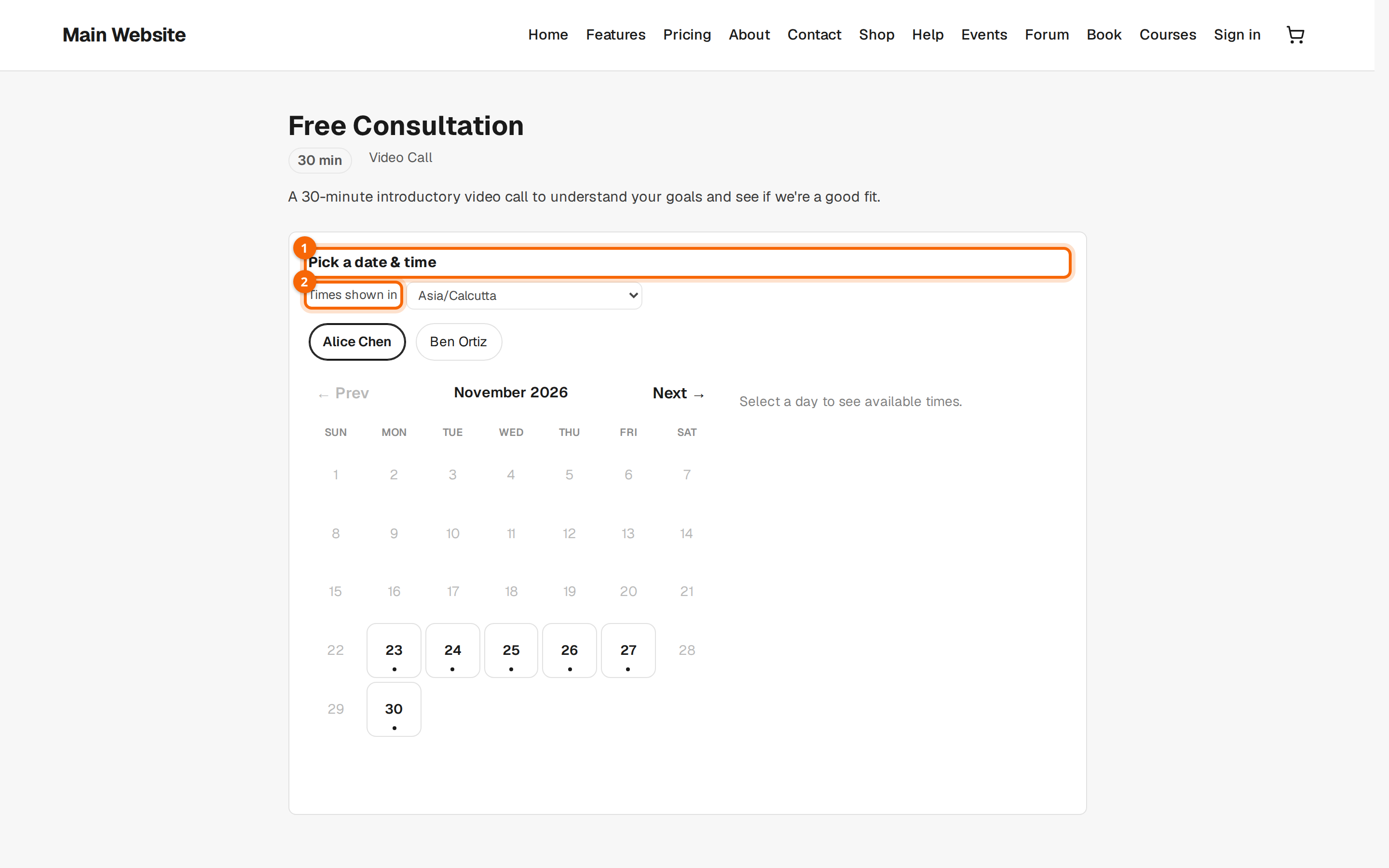
- They pick a day on the calendar, then one of its free times. Only real open times are offered, and each time is checked again when they book.
- Times are in their own timezone, which they can change under Times shown in.
3. Enter their details and book
They enter their name, email, an optional phone number and anything you should know, then click Confirm booking (Continue to payment for a paid service).
- Most services confirm at once: they see You're booked with the service's confirmation message, a Join link for a video call, and Reschedule or cancel →.
- A service with Manual Confirmation shows Booking received instead; they are emailed when you confirm.
The confirmation email has the time in the customer's own zone, who they are seeing, where or how to join, a calendar file to add it to their calendar, and the link to reschedule or cancel.
Where the booking lands
It appears in Appointments → Appointments with the Source Website, on the staff member's calendar as a meeting. The customer is matched to an existing contact with that email, or added as a new one. If two people try to take the same time, the second is told Sorry, that time was just taken.