How do I turn on multiple currencies and keep exchange rates up to date?
Switch on Multi-Currency, enable the currencies you trade in, and enter their rates — or fetch them daily with Automatic Exchange Rates.
Out of the box, every invoice, bill and payment is in your company's currency. Switch on multi-currency when you bill customers or pay suppliers in another currency; your books stay in your company currency and each document is converted at its own date's rate.
1. Switch on Multi-Currency
- Click Setup and stay on the Invoicing tab.
- Under Features, switch on Multi-Currency.
- Click Save.
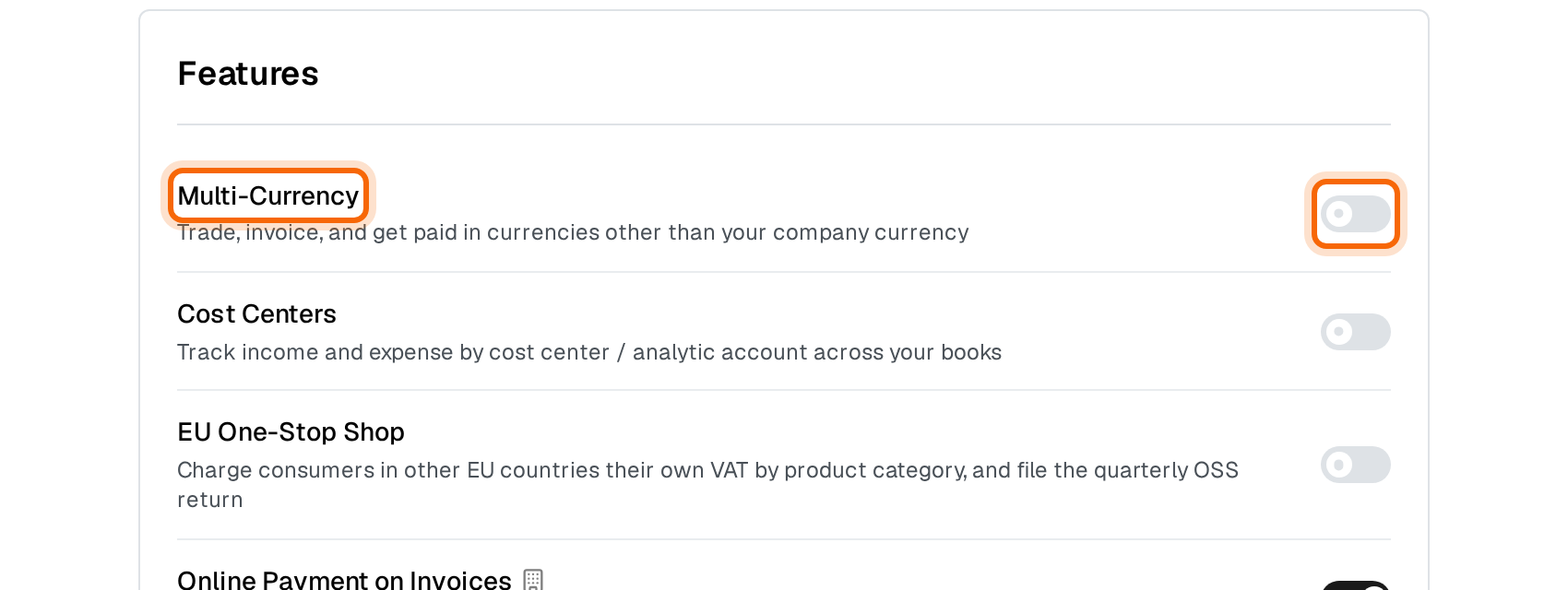
Invoices, bills and payments now show Currency and Exchange Rate, and a Currencies link appears under Setup.
2. Enable the currencies you use
Fullfinity ships every currency, switched off. Click the Currencies link, find the currency (e.g. EUR) and switch on its Active column.
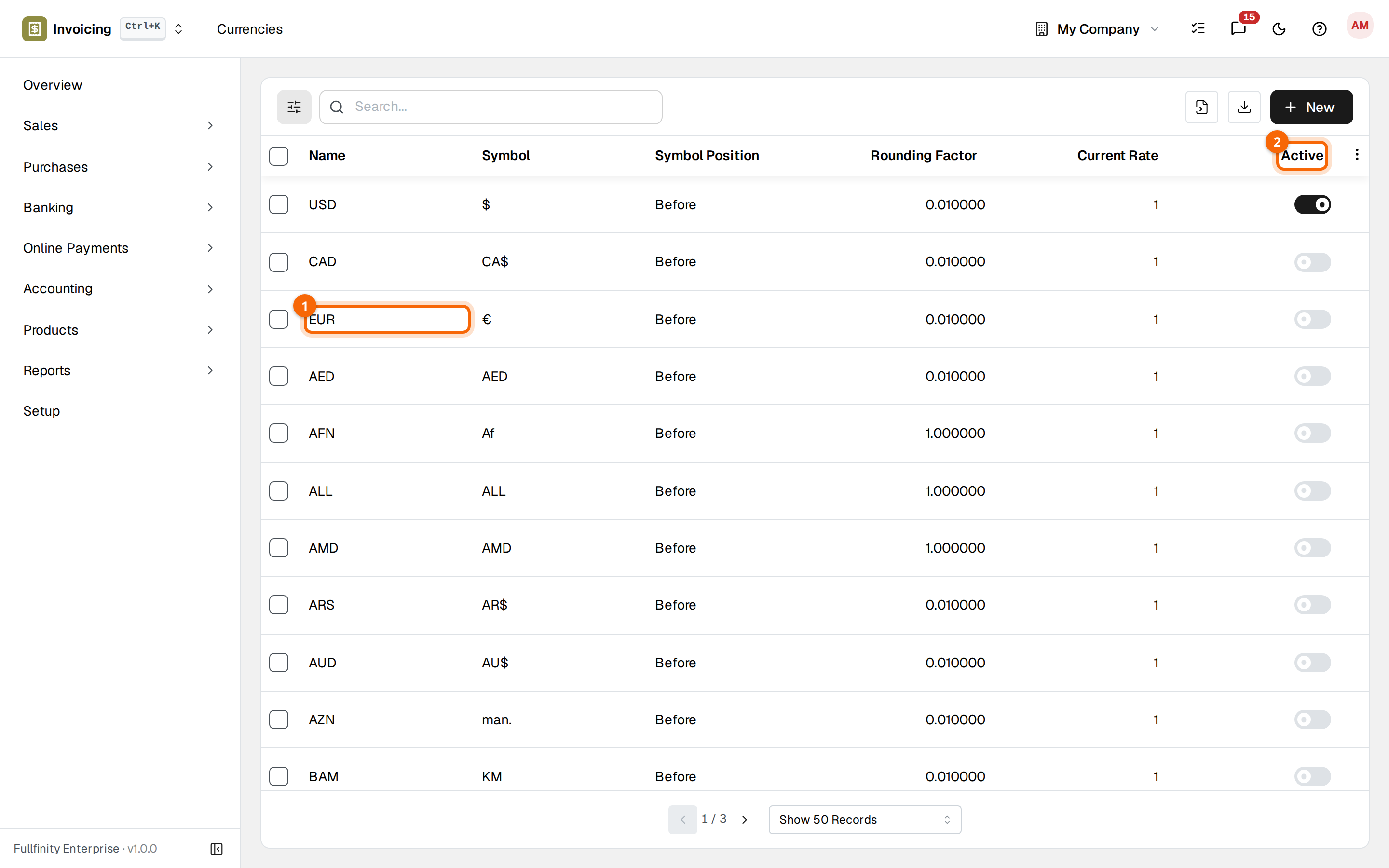
Each currency also has a Symbol, a Symbol Position and a Rounding Factor (the smallest amount it is rounded to).
3. Enter exchange rates
Open the currency and click Current Rate to see its rates. Click New and enter the Date and the Exchange Rate: how many units of your company currency one unit of this currency is worth. The Inverse Rate is worked out for you.
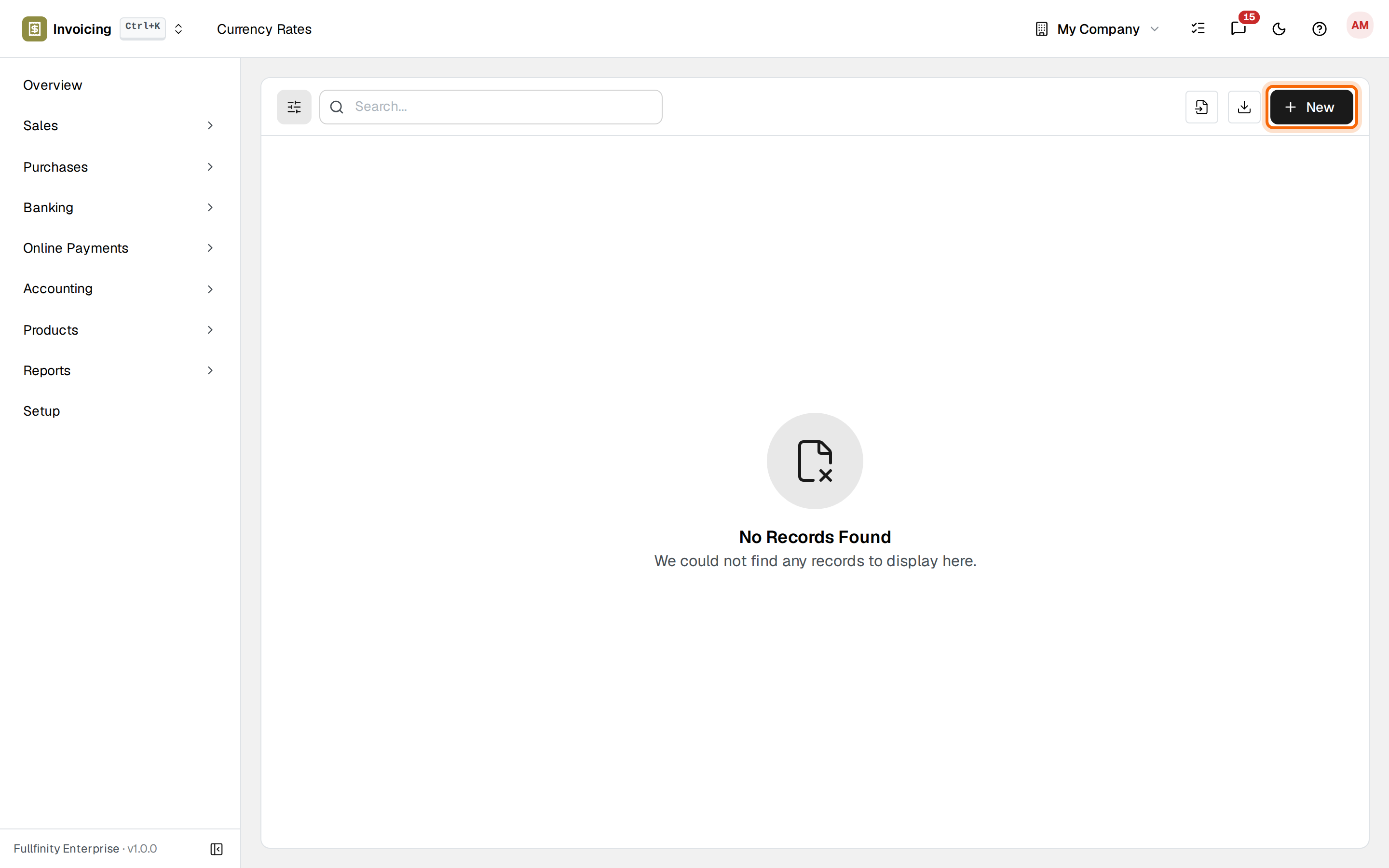
A document uses the most recent rate dated on or before its own date. Enter a new rate whenever the rate changes — earlier documents keep the rate they were converted at.
Fetch rates automatically
With Multi-Currency on, the Features panel also shows Automatic Exchange Rates. Switch it on and click Save: Fullfinity then fetches daily reference rates for the currencies you have enabled and files them for each company, so nobody has to type them in.