How do I run a trial balance, general ledger or contact ledger?
Check that your books balance, list every transaction on an account, and see the full history of one customer or supplier.
These three reports are for checking your books line by line. All three use posted entries only and amounts in your company currency, and each is produced as a PDF when you click Generate Report.
Trial Balance — does everything add up?
- Go to Reports → Trial Balance.
- Set As of Date and click Generate Report.
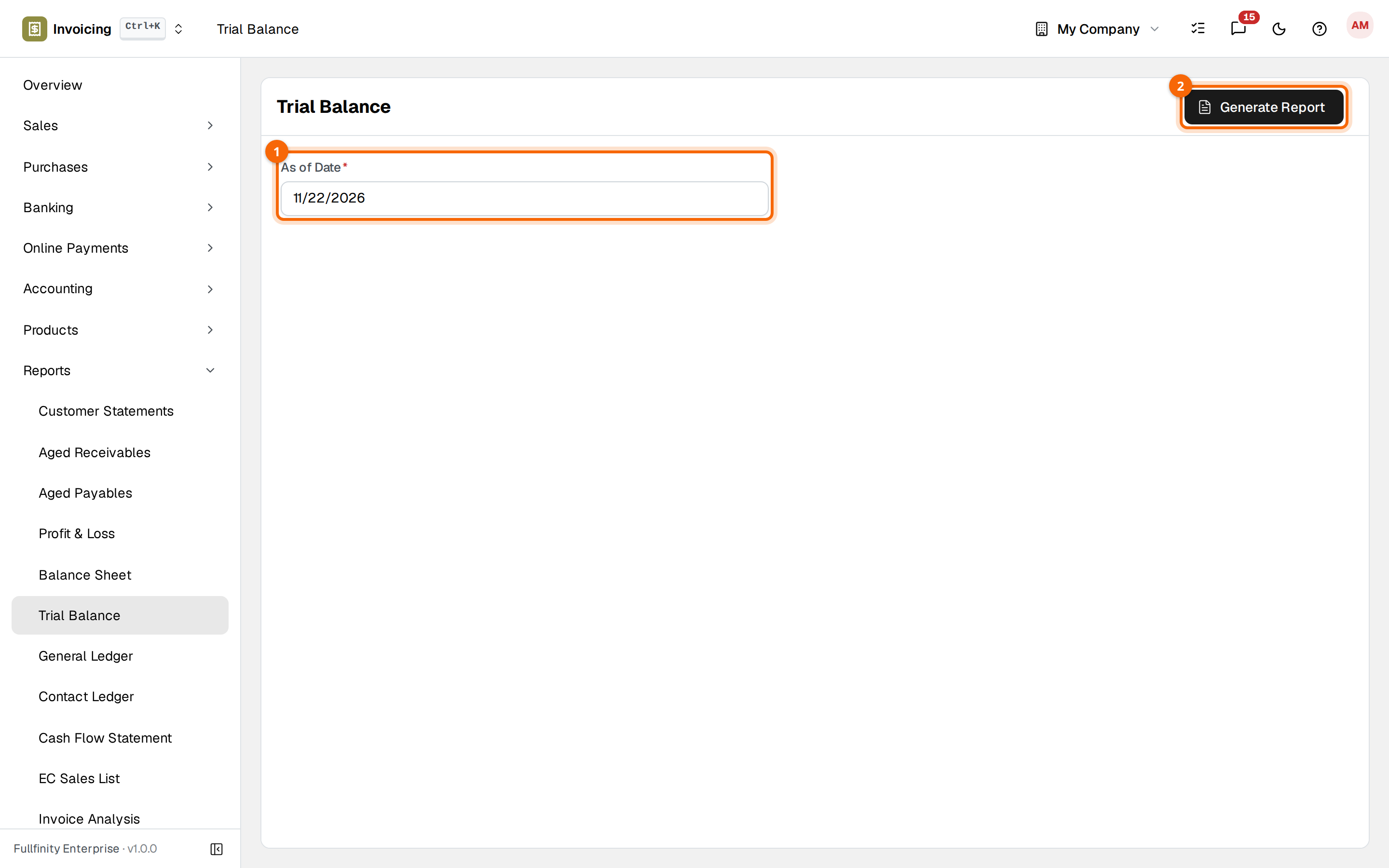
Every account with a balance on that date is listed with its Debit and Credit, and the totals at the bottom. The report confirms the Trial Balance is balanced, or shows the difference if it isn't.
General Ledger — every transaction on an account
- Go to Reports → General Ledger.
- Set From Date and To Date.
- Account — pick one to see only it, or leave it empty for all accounts.
- Click Generate Report.
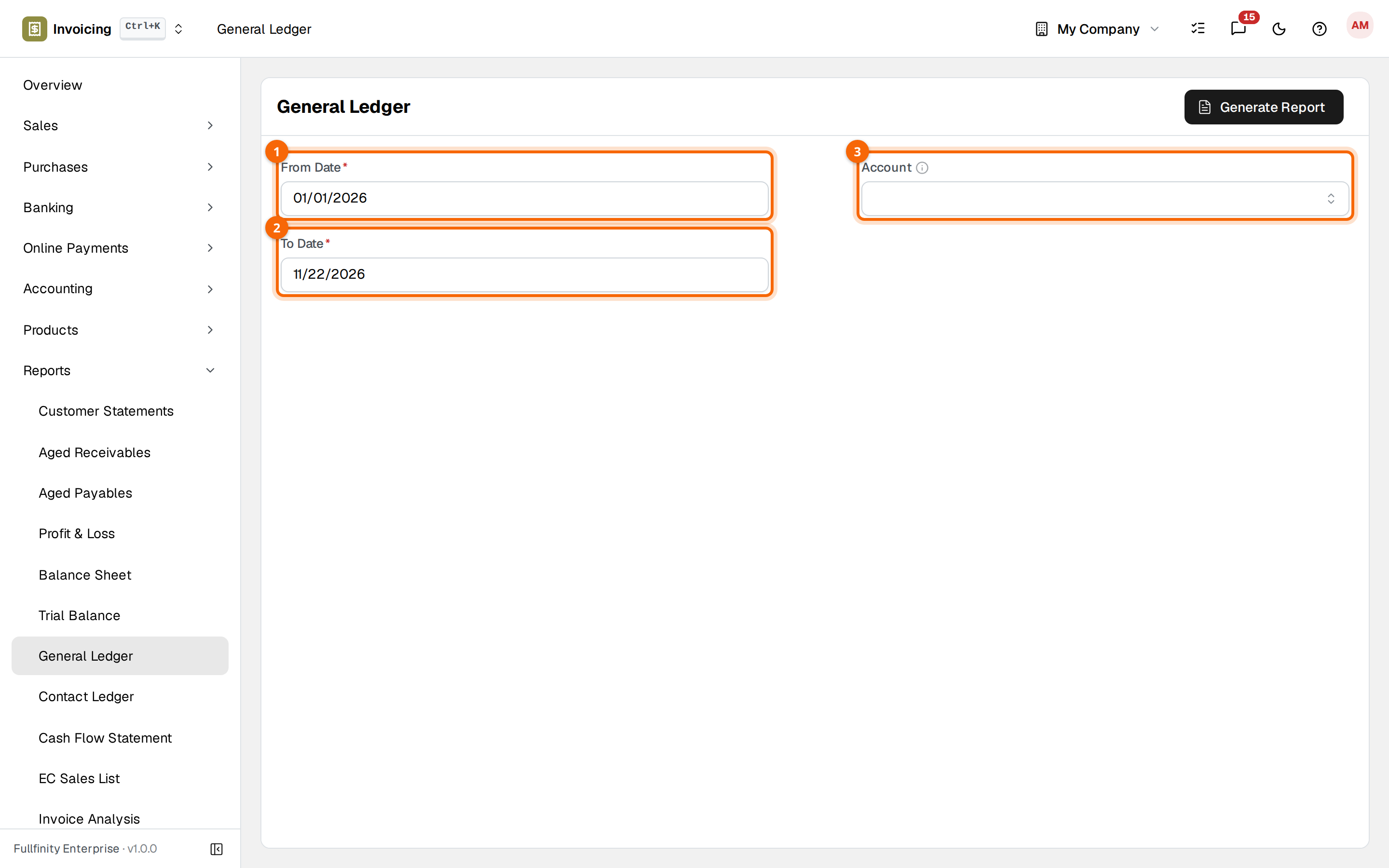
For each account: the Opening Balance at the start of the period, every posted line in it (Date, Reference, Contact, Debit, Credit and a running Balance), and the Period Totals.
Contact Ledger — one customer's or supplier's history
- Go to Reports → Contact Ledger.
- Choose the Contact and set From Date and To Date.
- Click Generate Report.
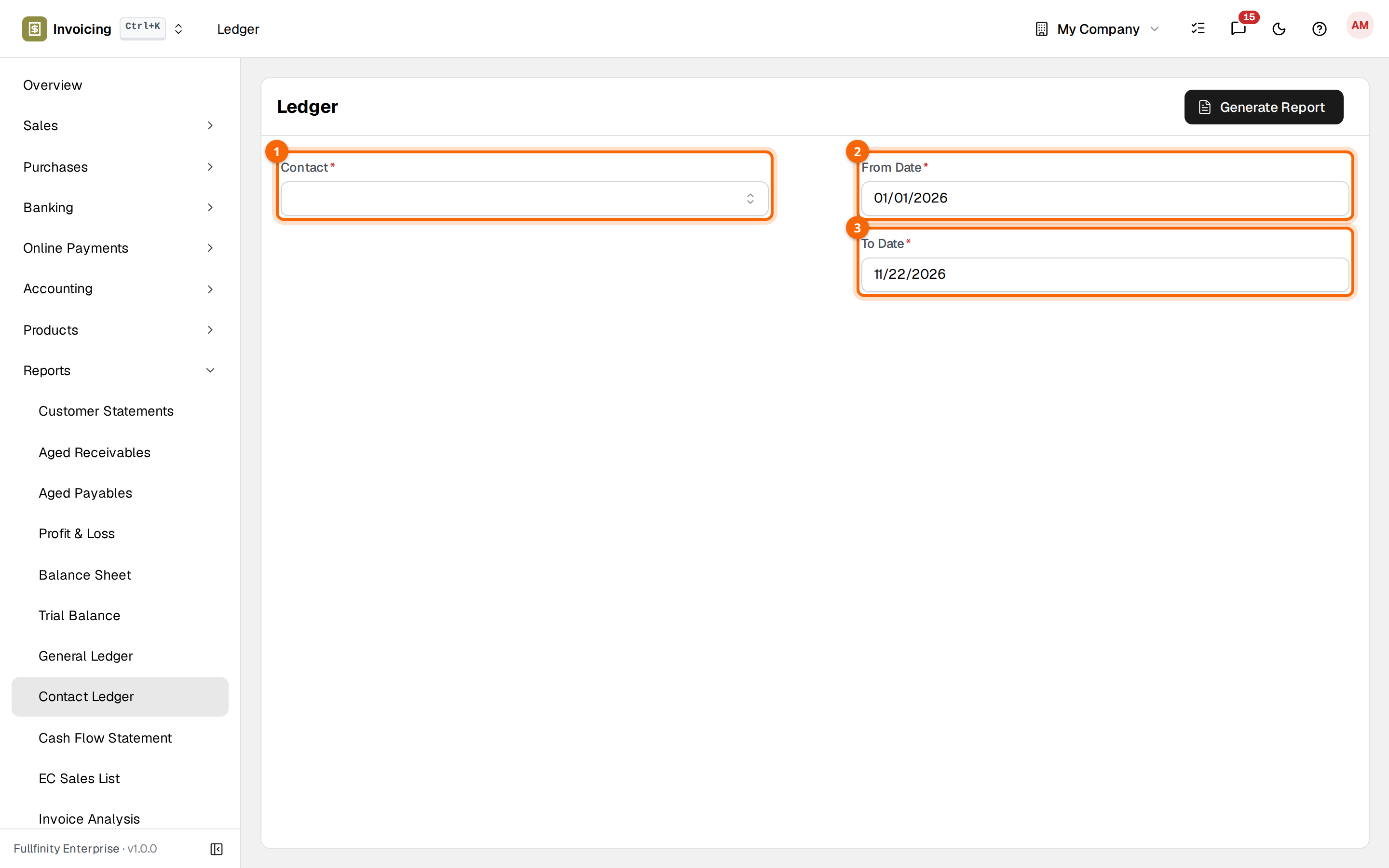
It shows every invoice, bill, credit note and payment for that contact on their receivable and payable accounts, with an opening balance, a running balance and the totals for the period.