How do I make a graded quiz or certification?
Mark the right answers, set a passing score, add a time limit or a random draw, and issue a certificate on a pass.
A quiz is a survey that is graded: respondents see their score as soon as they submit, and — for a certification — download a certificate when they pass.
1. Make the survey a quiz
On the survey, switch on This is a quiz. A Scoring tab appears.
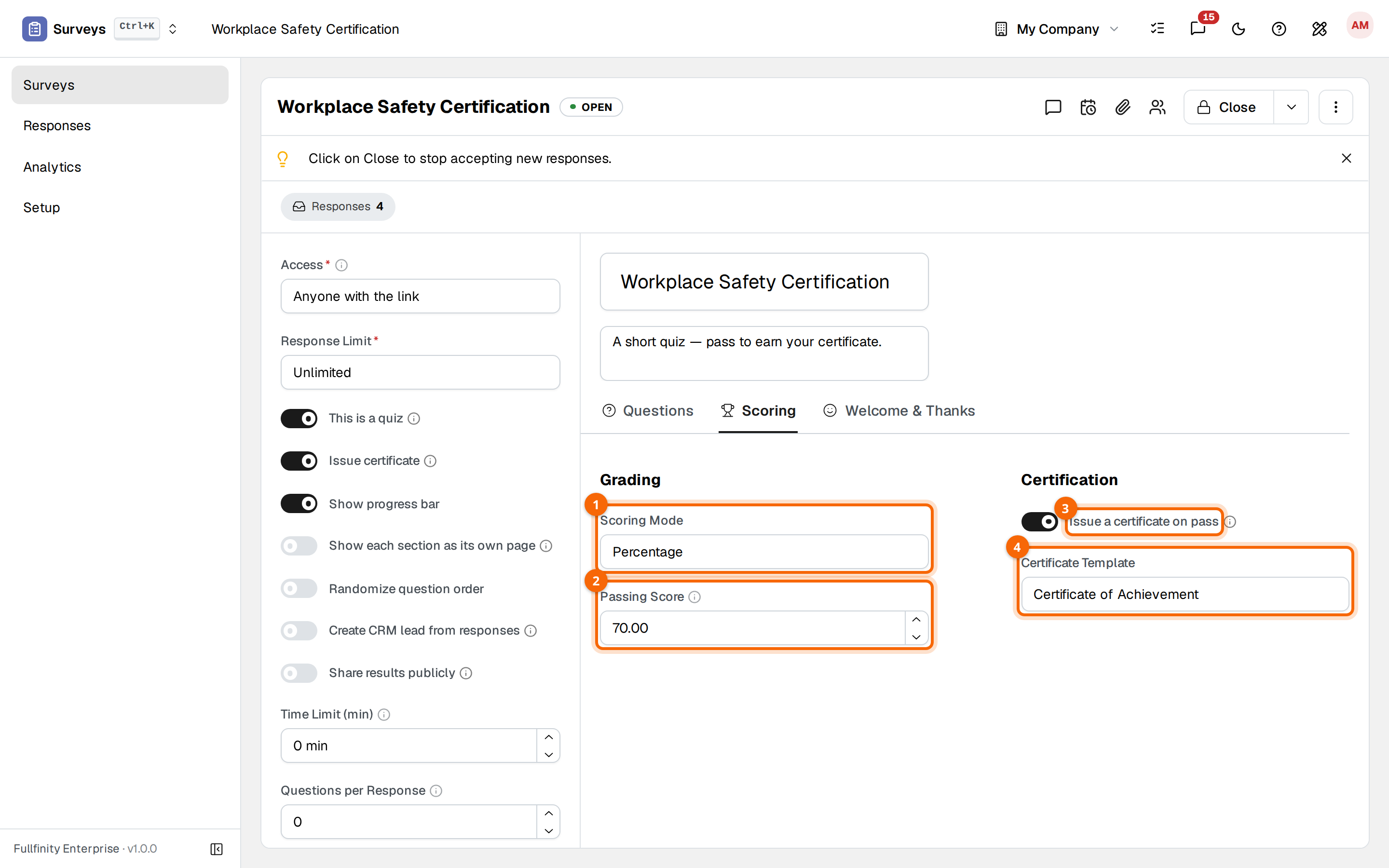
- Scoring Mode — Percentage (the score is the share of points earned), Total points, or No scoring (nothing is graded).
- Passing Score — the score needed to pass: a percentage, or a number of points.
- Issue a certificate on pass — makes it a certification.
- Certificate Template — the certificate's layout.
2. Mark the right answers
Open each question you want graded. On its Scoring tab, switch on Score this question and set its Points. Then:
- For a choice question, tick Correct on the right options on the Choices tab. Several right answers to a multiple-choice question earn partial credit: each right tick adds, each wrong tick takes away. Or give options their own Points to score each one.
- For a text, number or scale question, type the Correct Answer. Text is compared ignoring capitals.
3. Time limit and random questions (optional)
- Time Limit (min) — the clock starts when the respondent opens the quiz and counts down on screen. Answers are saved as they go; when time runs out, what was saved is graded, even if they never pressed Submit.
- Questions per Response — each respondent gets this many questions, drawn at random from the whole list. Reloading the page doesn't draw again. A drawn quiz can't have sections or conditional questions.
What respondents get
On submitting, the respondent sees their score and Passed or Not passed. On a certification they pass, a Download certificate button gives them the PDF, with their name and the date. You find every result under Responses — with Score and Result columns — and each response's points per question on its Answers tab.
➡️ Related: How do I add a quiz to a course?