How do I add products, quantities and tax to an invoice?
Add line items, set quantities and unit prices, and apply the right tax.
The Line Items tab is where you list everything the customer is being charged for. Lines can be changed while the invoice is a Draft.
1. Add a line
On the invoice's Line Items tab, click Add a line — or Catalog to pick products from cards — then fill in the columns:
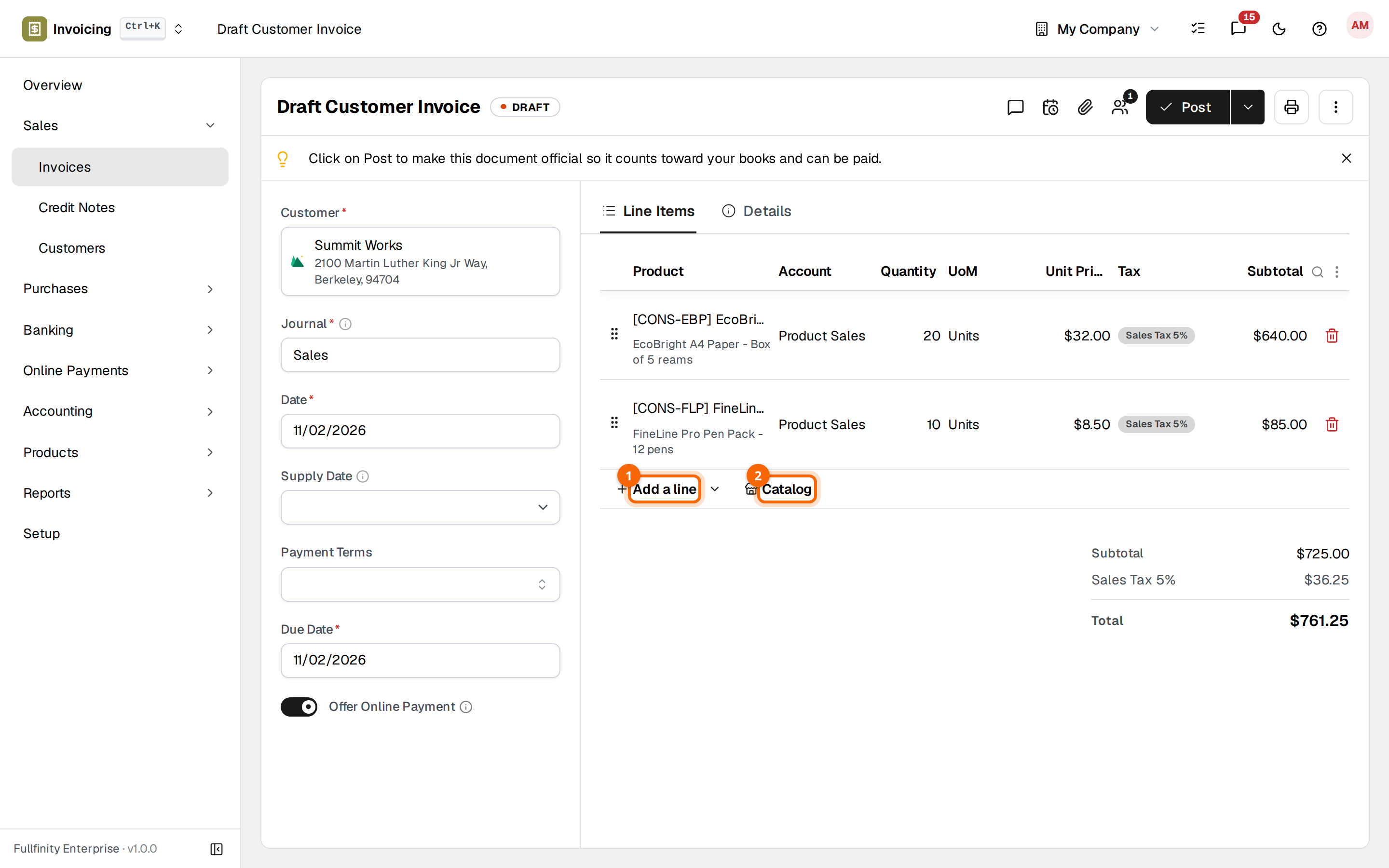
| Column | Notes |
|---|---|
| Product | Pick a product to fill in its description, account, unit price and taxes. |
| Description | Required. The text printed on the invoice, shown under the product. It starts as the product's name; edit it to say more. |
| Account | The income account the line posts to. Comes from the product. |
| Quantity | Required. |
| UoM | The unit (e.g. Units, Hours), limited to units of the same kind as the product's. |
| Unit Price | Required. Comes from the product's sale price. |
| Tax | One or more taxes. Come from the product's Customer Taxes, through the customer's tax rule if they have one. |
| Subtotal | Worked out for you: quantity × unit price, before tax. |
2. Check the totals
The summary under the lines keeps itself up to date:
- Subtotal — all line subtotals, before tax.
- One line per tax (e.g. Sales Tax 15%), so a 15% and a 5% tax appear separately.
- Total — subtotal plus taxes.
- Amount Due — what's still to be paid, once the invoice is posted.
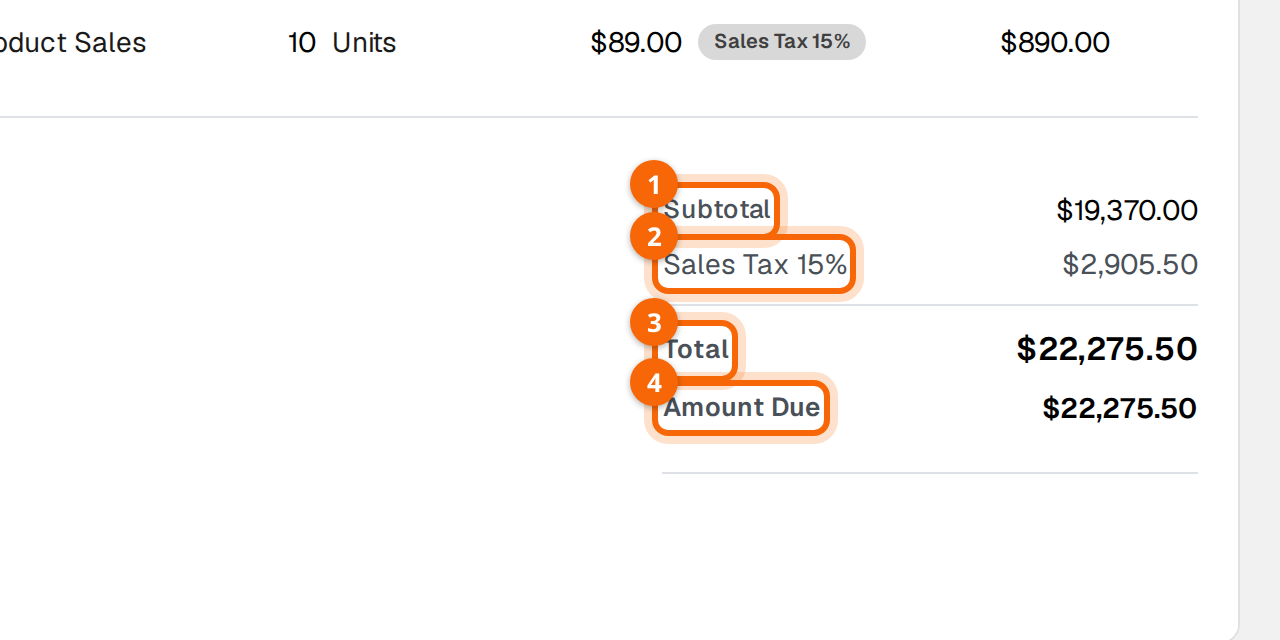
You never type the total — it always comes from the lines. With an Inclusive tax the unit price already contains the tax, and the subtotal is the price without it.
Lines without a product
- Leave Product empty and type a description, Account, Quantity and Unit Price for a one-off charge.
- Click the arrow beside Add a line and choose Section for a heading that groups the lines below it, or Note for a line of text with no amount.
Related: How do I set up taxes?
Was this article helpful?