How do I record a debit note from a vendor?
Reverse all or part of a posted vendor bill with a debit note — for returned goods or an overcharge.
A debit note is the supplier-side twin of a credit note: it reverses all or part of a posted vendor bill, for goods you sent back or an amount you were overcharged.
1. Create the debit note from the bill
- Open the posted bill in Purchases → Bills.
- Click the arrow beside the main button and choose Create Debit Note.
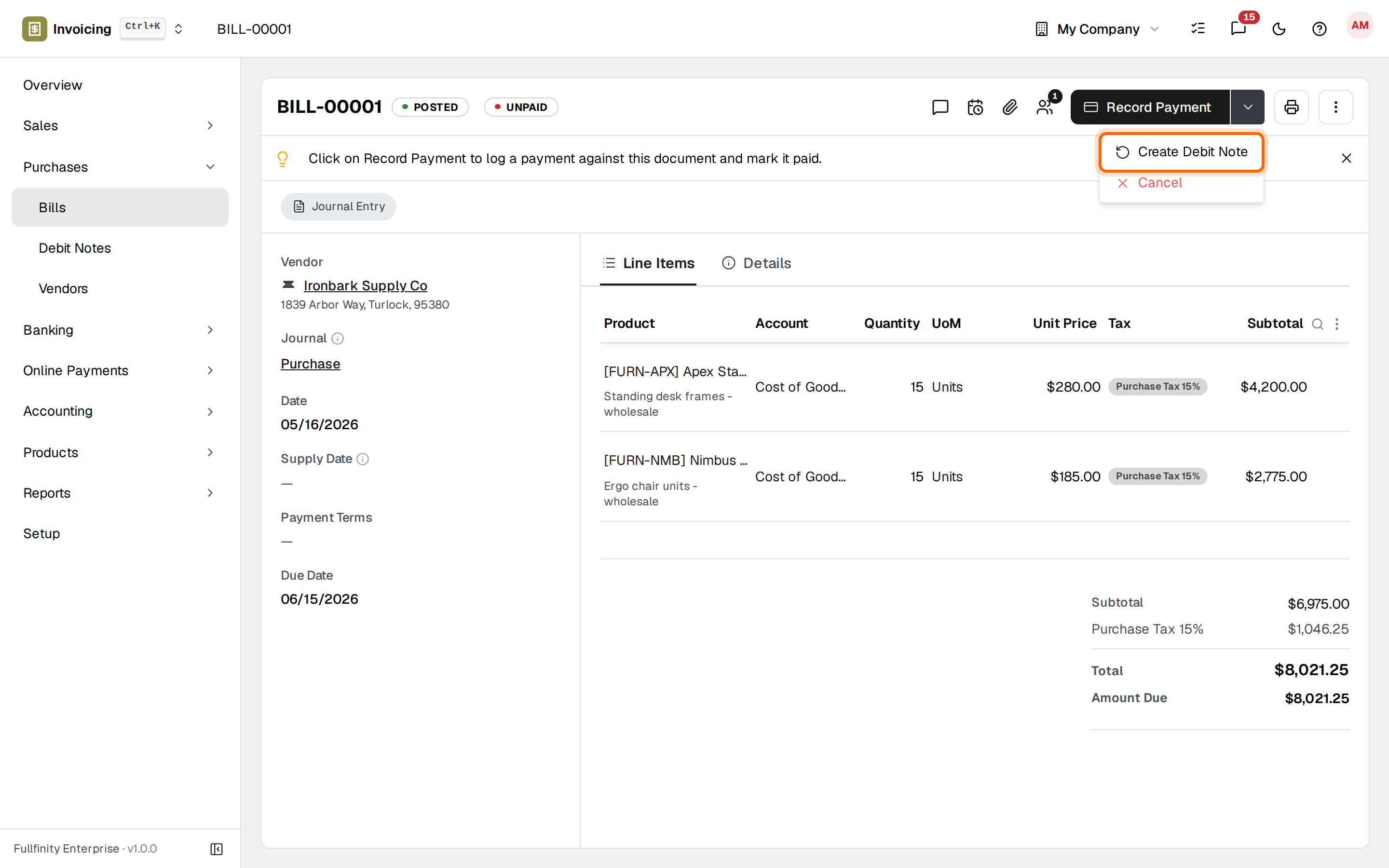
A draft debit note opens with a copy of the bill's lines, dated today, with Reversal of and the bill number as its Reference.
2. Adjust and post it
- For the whole bill, leave the lines as they are.
- For part of it, delete lines or lower quantities.
Click Post. The bill gets a Debit Notes button and the debit note a Source Bill button, so you can go from one to the other. All debit notes are listed in Purchases → Debit Notes.
3. Settle it
- Deduct it from what you owe — the debit note shows under Available Credits on the supplier's unpaid bills; apply it as you would a credit note (see how). Or tick it together with their bills when you click Register Payment in the Bills list.
- The supplier refunds you — click Record Payment on the posted debit note and record the money received.
Was this article helpful?