How do I set up shipping methods?
Offer delivery options with a fixed price, a price by weight, order total or quantity, or free shipping — and add them to quotes.
A shipping method is a delivery option you charge for, such as Standard Shipping or Store Pickup. You can add one to a quotation, and customers choose one at checkout in your online store.
Create a shipping method
- In Inventory → Setup, click Shipping Methods, then New.
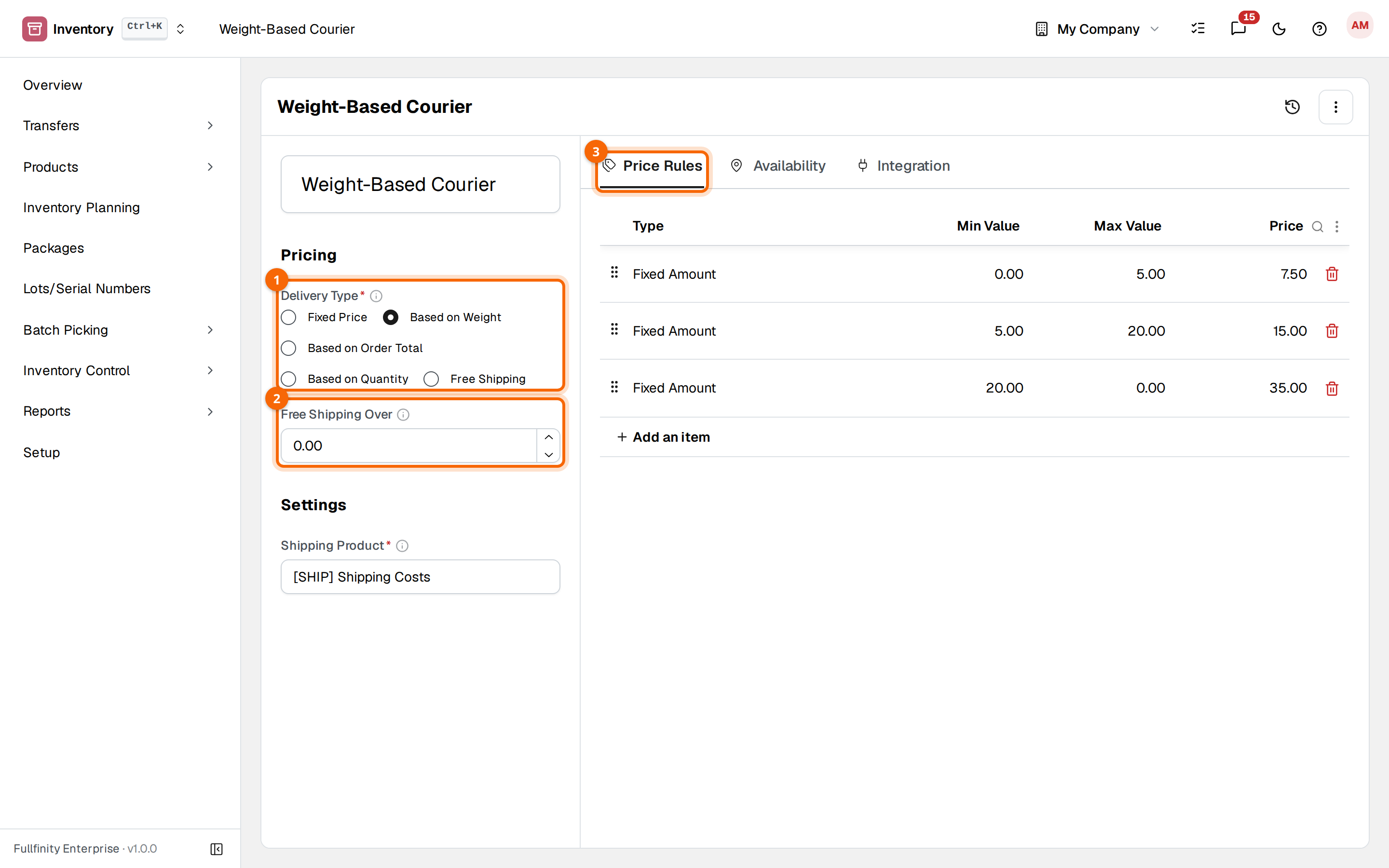
- Name it and choose its Delivery Type (1) — how the price is worked out.
- Set Free Shipping Over (2) if orders above an amount ship free. Leave it at 0 to never ship free.
- For a type based on weight, order total or quantity, add the brackets on the Price Rules tab (3).
- Choose the Shipping Product — the service line added to the order for the charge.
| Delivery Type | Price |
|---|---|
| Fixed Price | Always the same amount. |
| Based on Weight | From the price rule whose range contains the order's weight. |
| Based on Order Total | From the price rule whose range contains the order total. |
| Based on Quantity | From the price rule whose range contains the number of items. |
| Free Shipping | Nothing. |
Each price rule has a Min Value, Max Value and Price; its Type says whether the price is a Fixed Amount or a Percentage. Use the Availability tab to limit the method to some countries, and the Integration tab for a tracking link.
Add shipping to a quotation
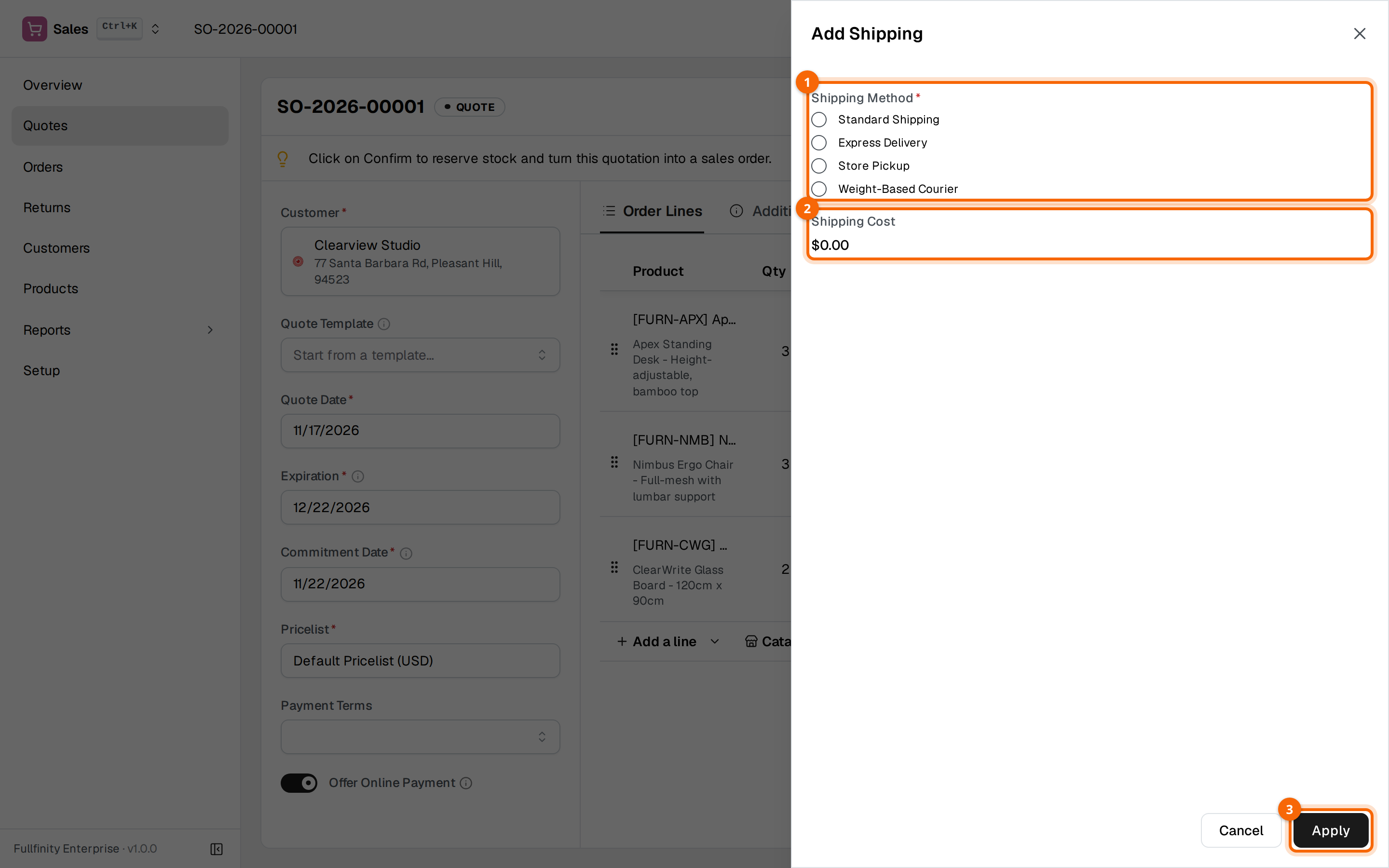
On a quotation, open the menu next to Confirm and choose Add Shipping. Pick the Shipping Method, check the Shipping Cost it works out, and click Apply.
Was this article helpful?