What do learners see when they take a course?
The course catalog, enrolling, working through lessons, taking quizzes and downloading a certificate — from the learner's side.
Learners never see the Learning app. Everything they do is on your website and in their account, so this is the page to send them, or to read before you answer their questions.
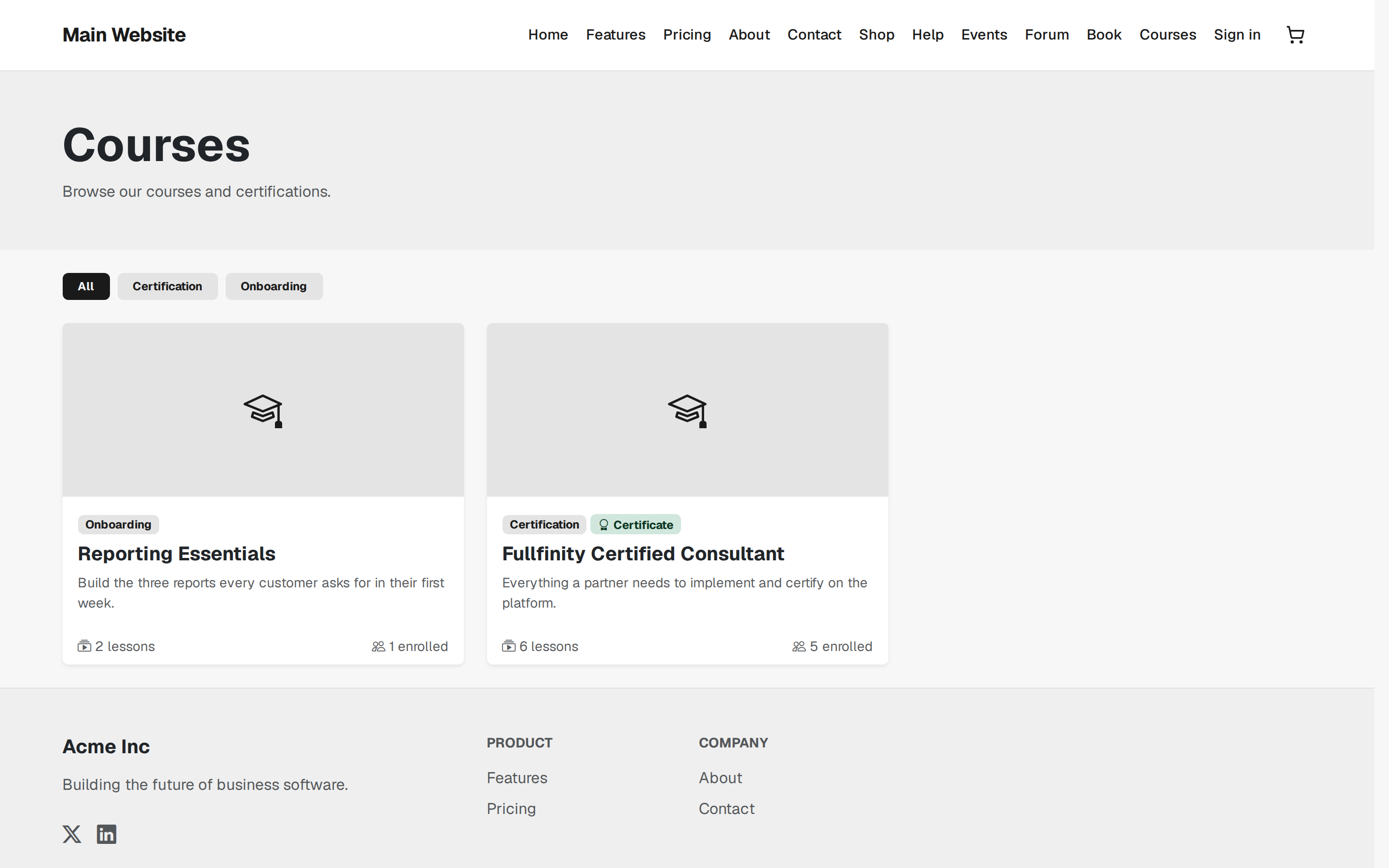
The catalog
Every published course is listed at /courses on your website, newest first, with filters for its categories.
The course page and enrolling
The course page shows the description, the number of lessons and the Curriculum. What the button says depends on who is looking:
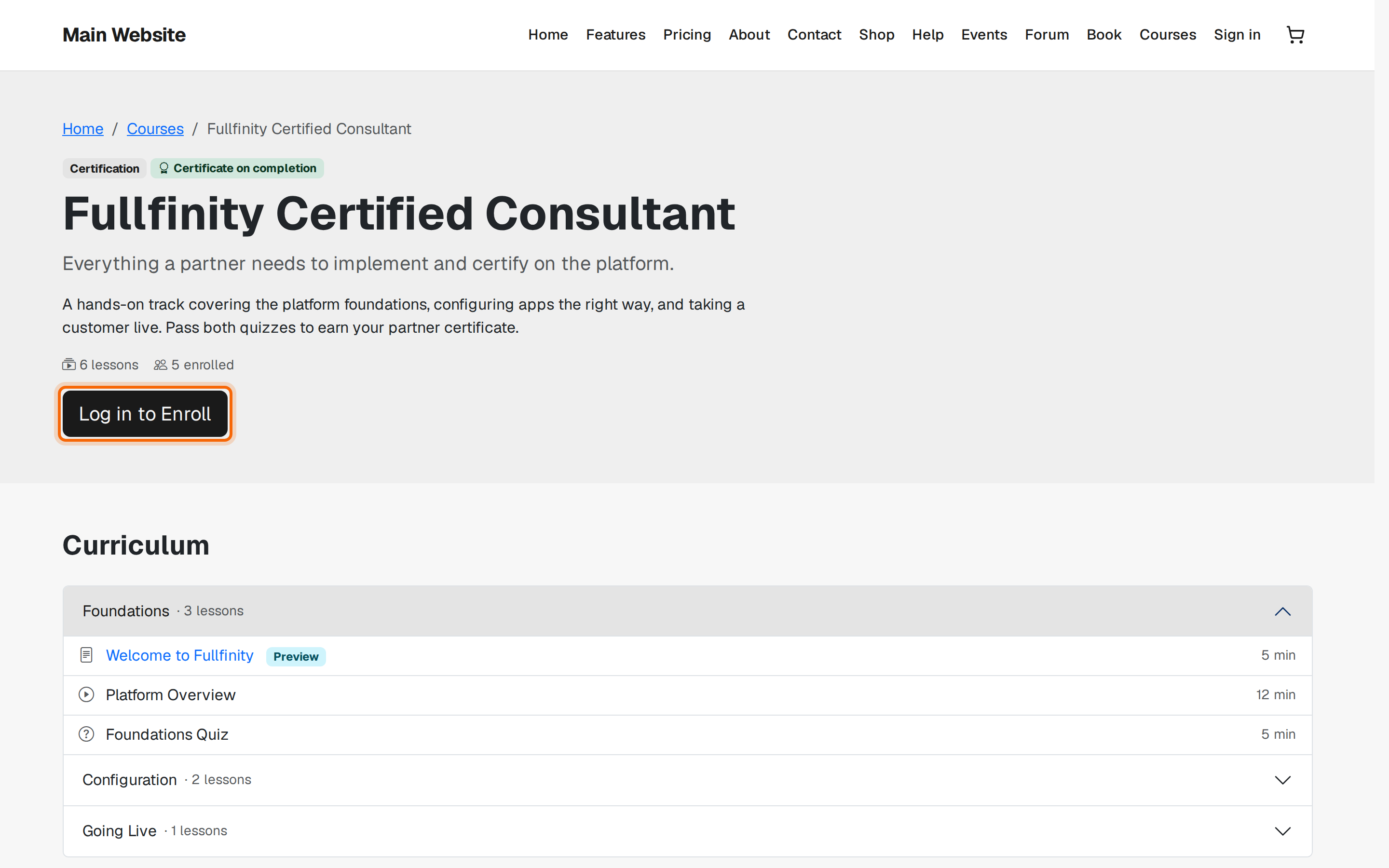
- Log in to Enroll — the visitor isn't signed in. After signing in they come back to the course.
- Enroll Now — signed in and the course allows self-enrollment. One click and they are enrolled.
- Start Learning — a Public course: anyone can read it straight away. Signed-in learners also get Enroll Now, so their progress is saved and they can earn the certificate.
- No button, just a note — an invitation-only course, or one whose enrollment the course team arranges. A course you sell says so and offers Buy This Course instead.
Lessons marked Preview can be opened by anyone. Other lessons of a course that needs enrolling are locked.
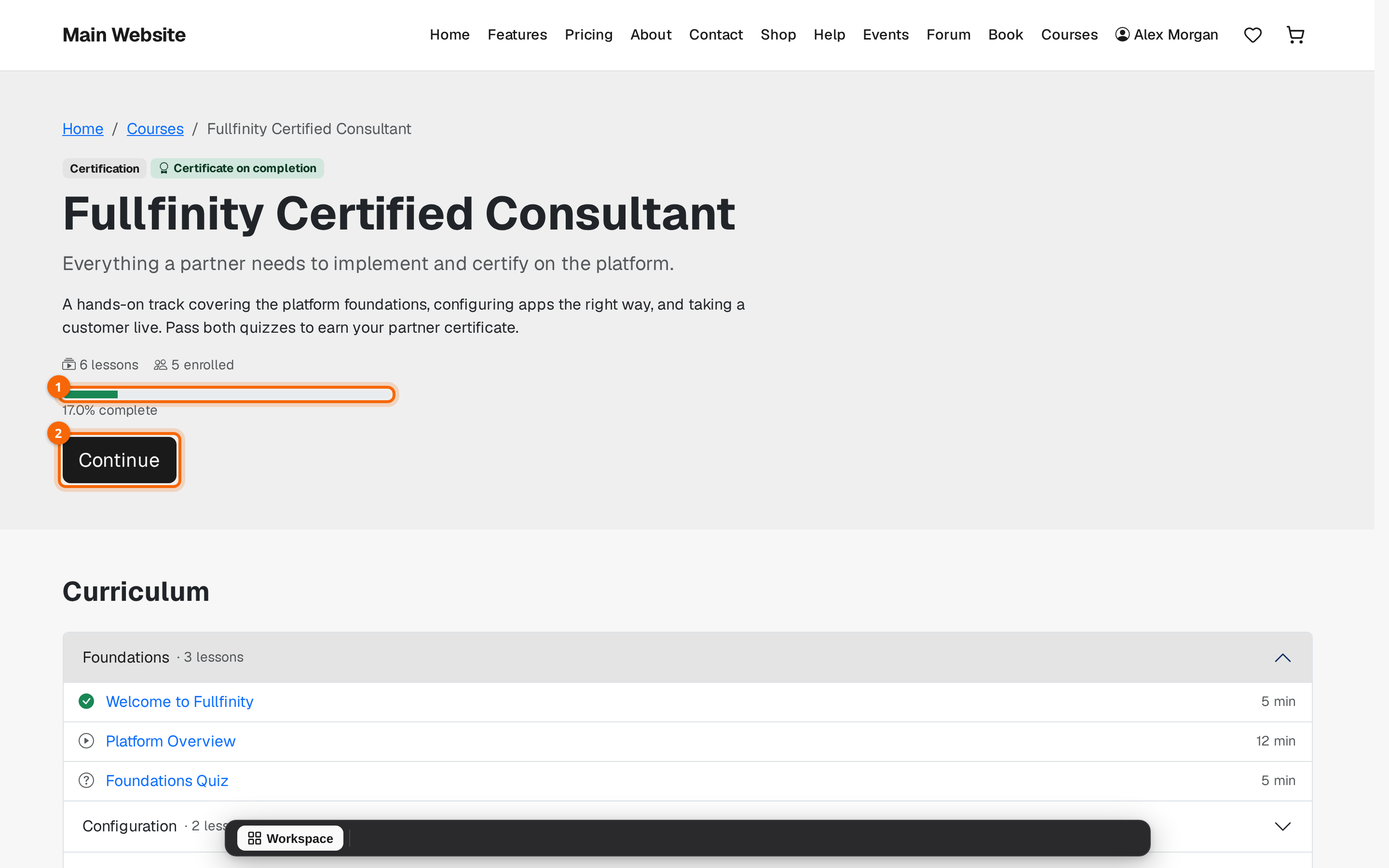
Once enrolled, the course page shows their progress and Start Course (or Continue), plus Final exam if the course has one and Certificate once they hold it.
Lessons
The lesson page has the course outline at the side, with a tick by every lesson done, and Previous and Next at the bottom.
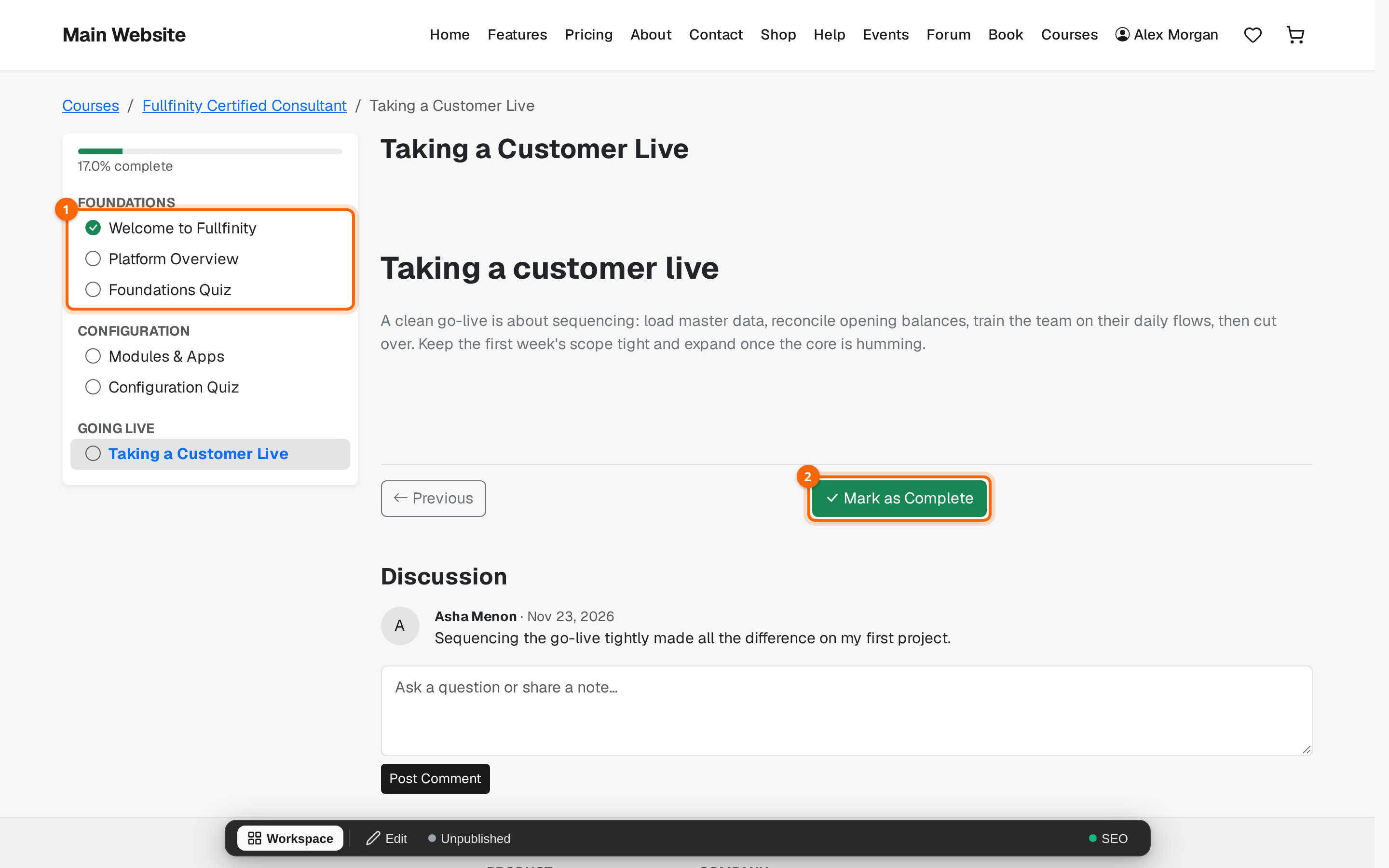
- A page, document or resource is completed with Mark as Complete.
- A video completes itself when nearly all of it has been watched, and resumes where they stopped.
- A quiz shows its rules and a Start button. Questions are answered with Next and Submit, and the score shows at once. Passing completes the lesson; failing leaves it open for another attempt, if the course allows one.
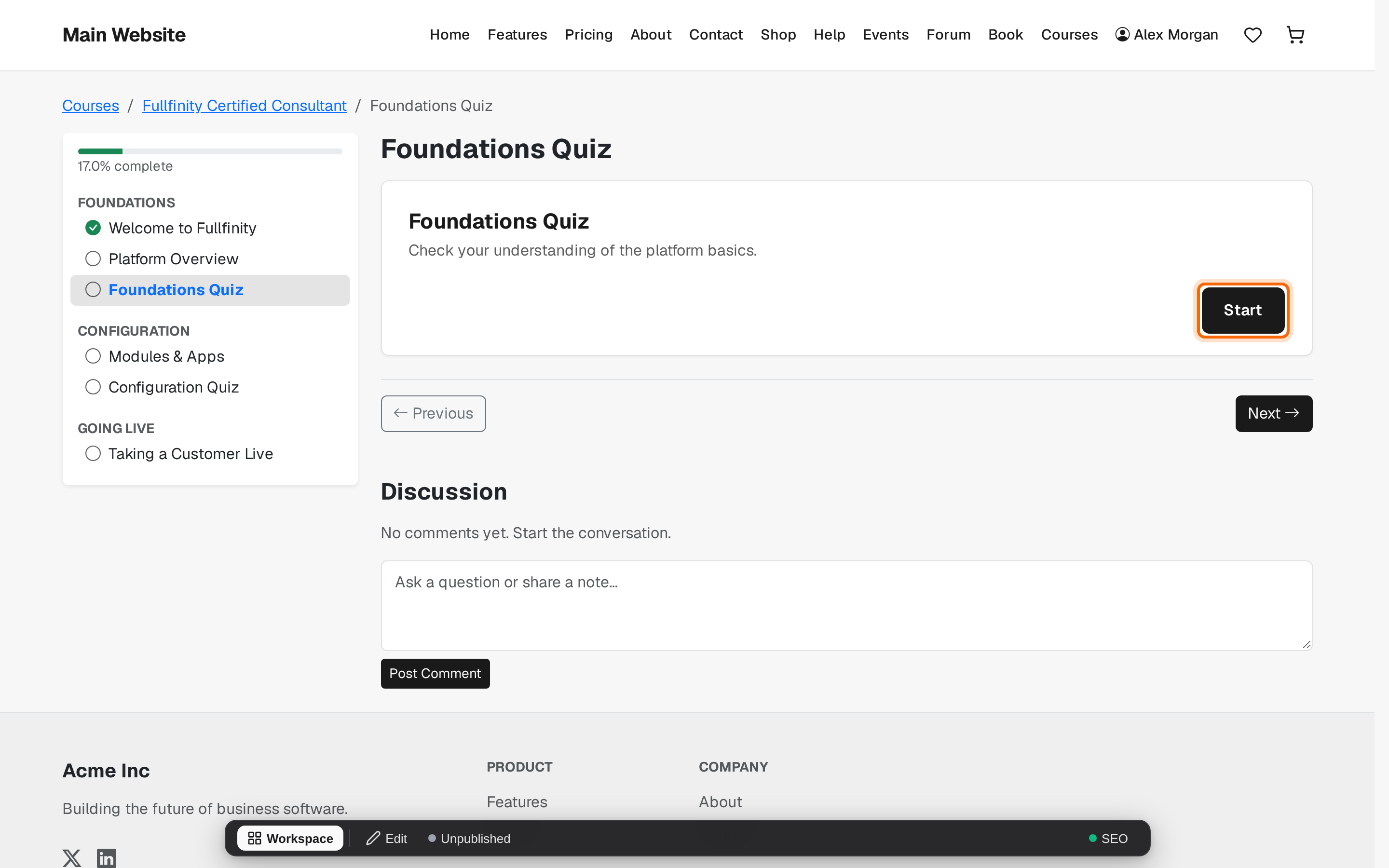
If discussion is on, learners ask questions under Discussion at the bottom of each lesson with Post Comment.
In their account
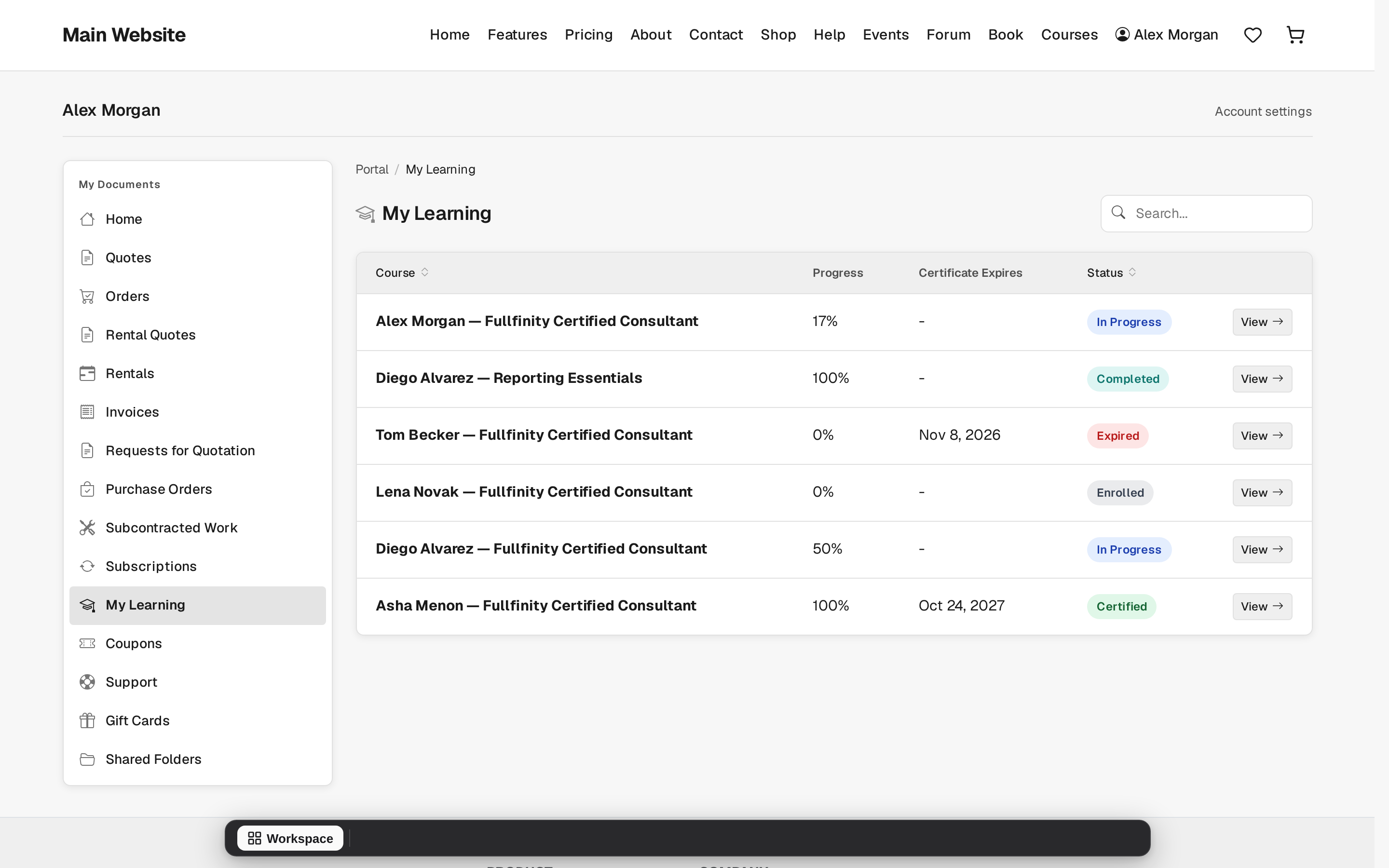
Signed-in learners find all their courses under My Learning in their account: progress, the lessons done, Continue Learning, and Download Certificate once certified.