Why can't I change a posted invoice?
A posted invoice is locked. Cancel it and reset it to draft to fix it, or issue a credit note.
Once an invoice is Posted, its lines, amounts, customer and dates are locked — only its Terms & Conditions can still be changed. It has an official number and an entry in your accounts, and changing it silently would make your books disagree with what the customer received.
Which fix to use
- The customer already has it, or it belongs to a period you've reported — keep it and issue a credit note. See How do I correct or refund a posted invoice?
- It was posted by mistake and hasn't been sent — cancel it, reset it to draft and fix it, as below.
1. Cancel the invoice
Open the invoice, click the arrow beside the main button and choose Cancel.
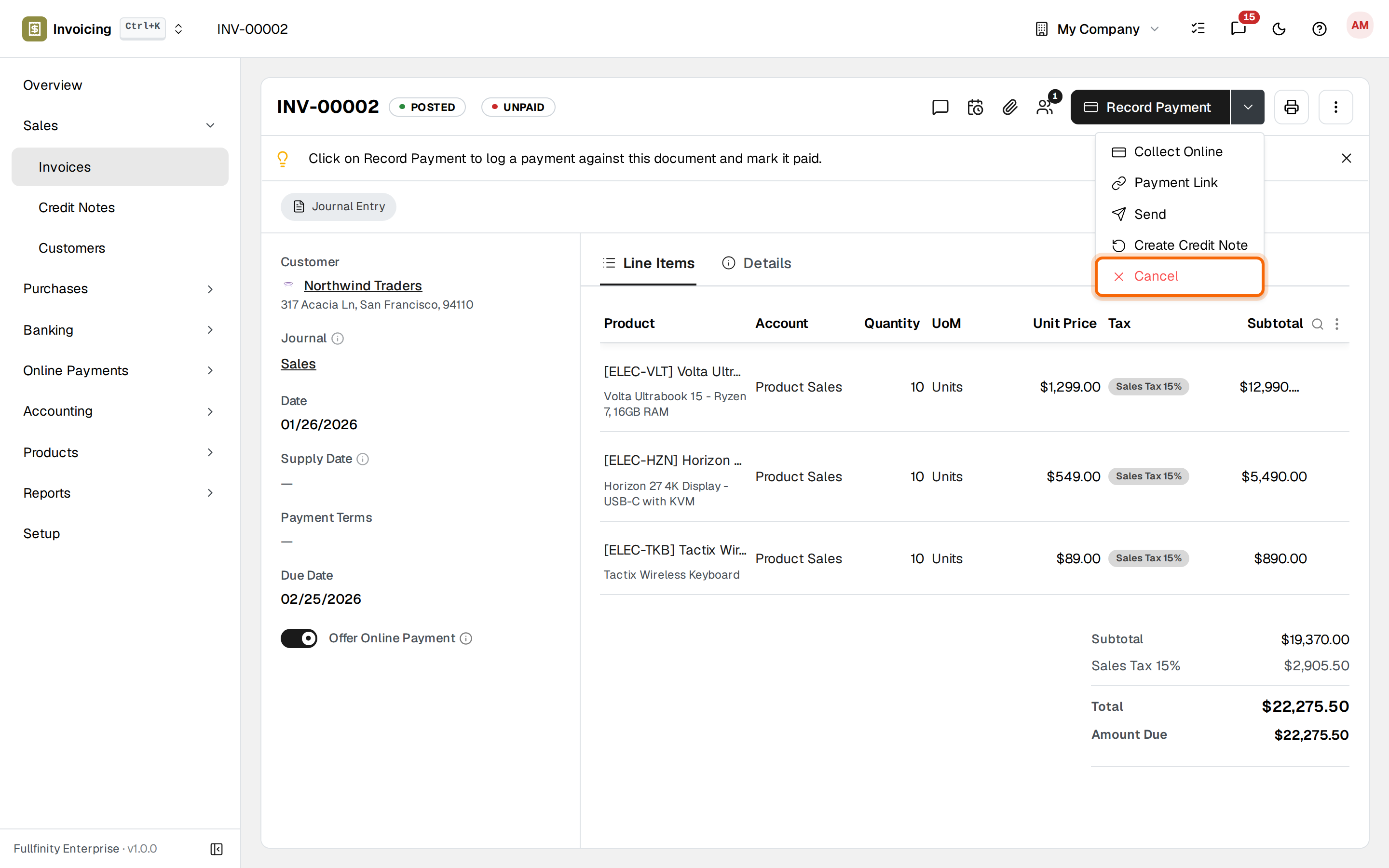
Cancelling:
- cancels its journal entry, so its income, tax and the amount owed leave your reports;
- detaches any payments and credits that were set against it — they stay posted and become available credit for the customer.
2. Reset it to draft and fix it
- On the cancelled invoice, click Reset to Draft.
- Change what was wrong.
- Click Post. The invoice keeps the number it was first given.
If a payment had been applied to it, apply it again from Available Credits — see Apply a credit note to an open invoice.
Was this article helpful?