How do I change a printed document?
Add fields, text, images and codes to a printed document such as an invoice, or design a new one.
The documents Fullfinity prints — invoices, quotes, delivery slips — can be changed in the Report Builder: add a field, a line of text, an image or a QR code, hide something you don't need, or restyle it. Your changes are kept as a layer on the standard document.
Open the document
- From a record: open it (an invoice), click the printer icon (Print Options) and click the pencil beside the document — Customize this report. The editor previews it with that record's data.
- From the Builder start page: Design a document, then search under Customize an existing report — or, under Create a new report, choose what it Prints, give it a Name and click Create & edit.
Edit it
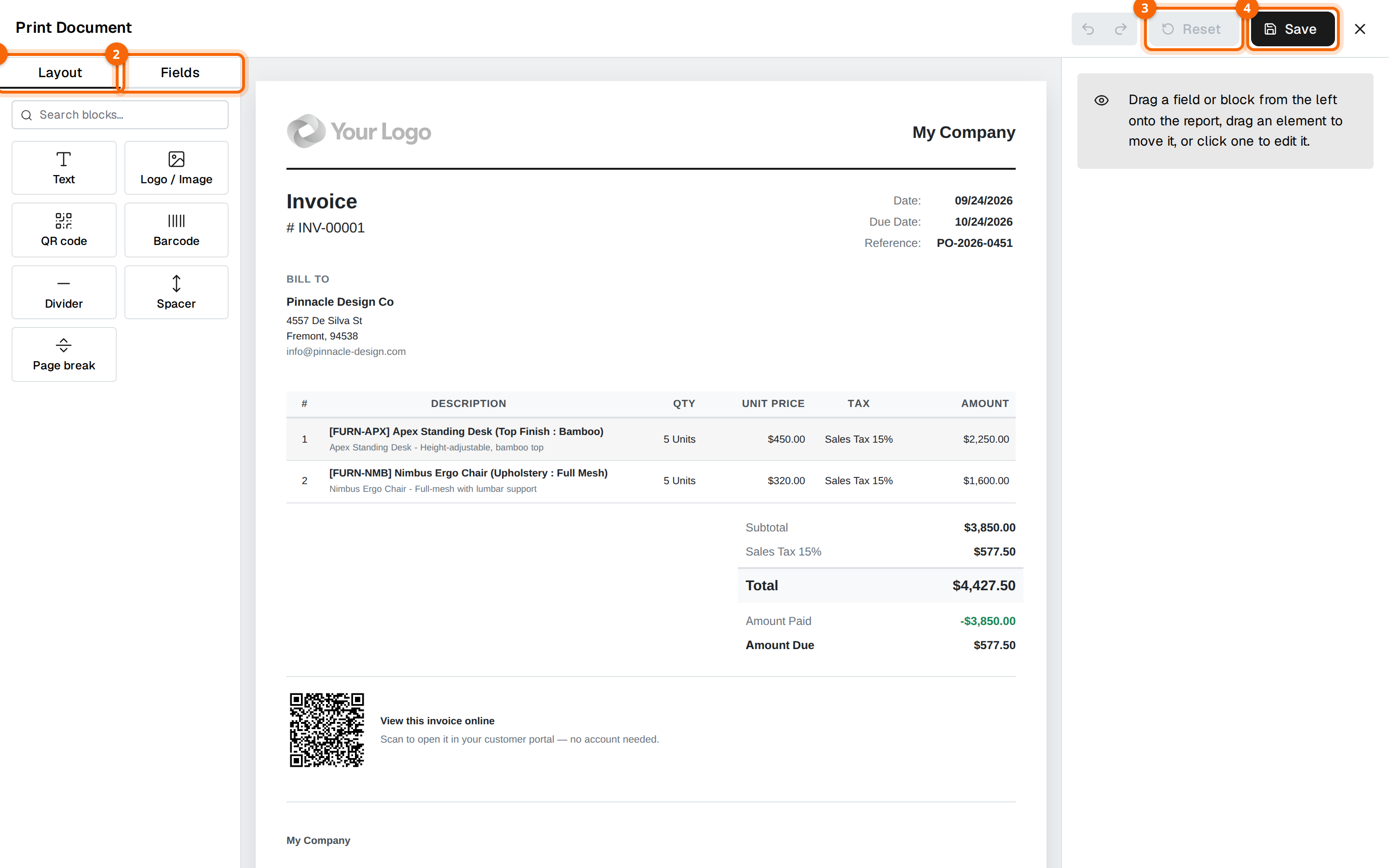
- Layout blocks: Text, Logo / Image, QR code, Barcode, Divider, Spacer, Page break. Fields lists the record's fields. Drag either onto the page.
- Click an element on the page to change it: its Label, Format, Style (Bold, Italic, Text size, Text color) or Hide this element. On a table, Columns adds or removes columns.
- Save — the change is live for everyone straight away.
- Reset removes all your changes, including saved ones, and goes back to the standard document. It asks you to confirm first, because it can't be undone.
Was this article helpful?