How do I automate a task?
Make something happen by itself when a record is created, changed, deleted or a date arrives — laid out step by step on a canvas.
An automation does something for you when a record changes: assign a new lead, email a customer when an order ships, flag an overdue invoice. In the Builder you lay its steps out on a canvas, with branches for different cases.
1. Create the automation
- On the Builder's start page click Automate a task, then New Automation.
- Give it a Name, choose the Model it watches and its Trigger: On Creation, On Update, On Deletion, On Time Condition (a date on the record arrives) or On Webhook (another system calls it).
- Click Create & open.
2. Lay out the steps
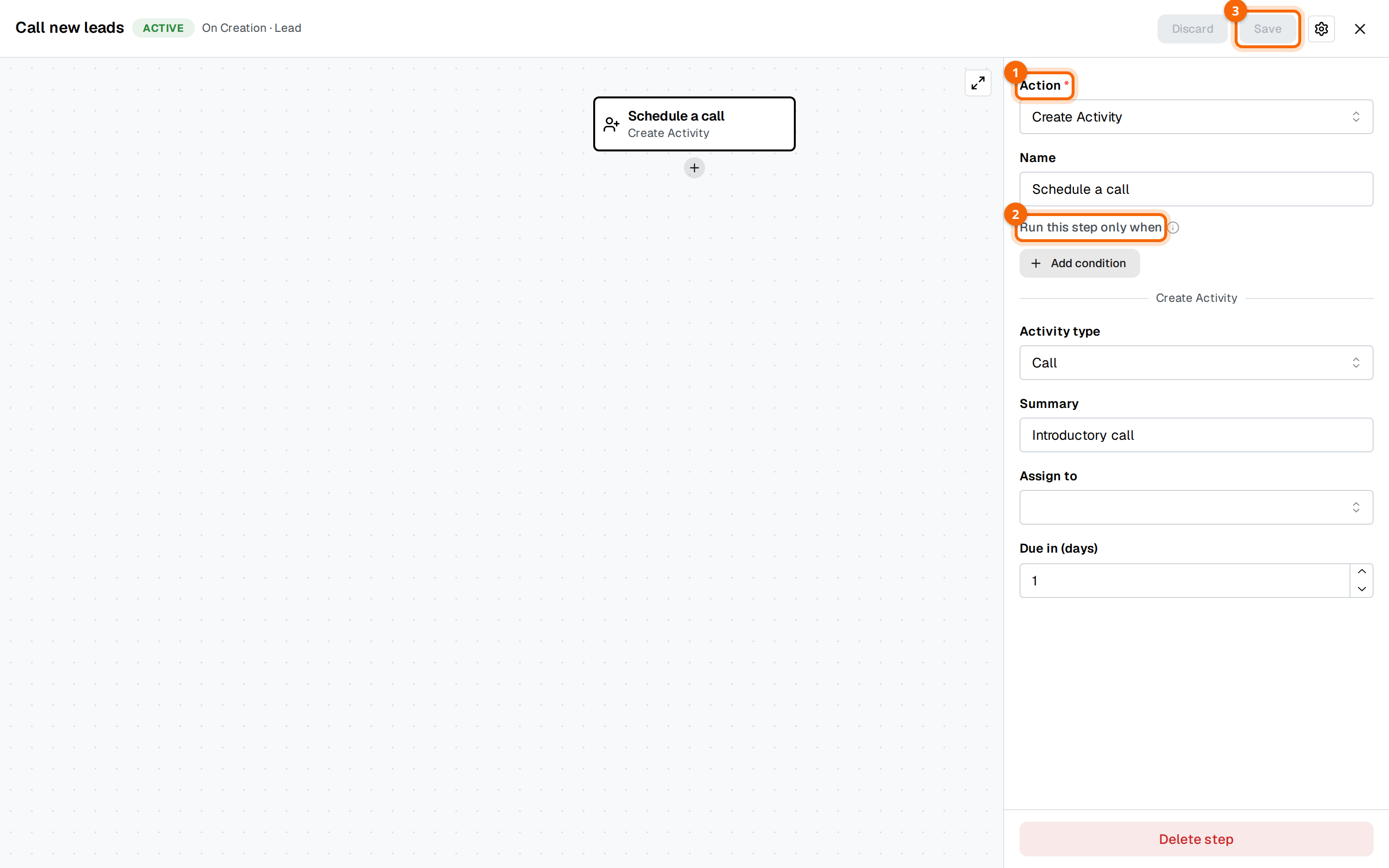
- Click Add first step. The + on a step adds a step under it; a step's steps run after it, so two steps under one, each with its own condition, are two branches.
- Click a step to choose its Action — Update Record, Create Record, Send Email, Send Webhook, Create Activity, Add Followers or Call Method — fill in what it needs, and set Run this step only when to run it (and everything under it) only for records that match.
- Click Save. Discard throws away unsaved changes; the gear opens Automation settings (its name, trigger, model and whose permissions it runs with).
Existing automations are listed on the same page; click one to open its canvas. An automation opened from its own form has a Design Flow button that opens the same canvas.
Was this article helpful?