How do I create, join and manage a channel?
Create public or private channels, find and join others, add people, mute, leave or archive a channel.
A channel keeps a team's or a topic's conversation in one place. Everyone in the workspace is already in general. You create or join the rest.
Create a channel
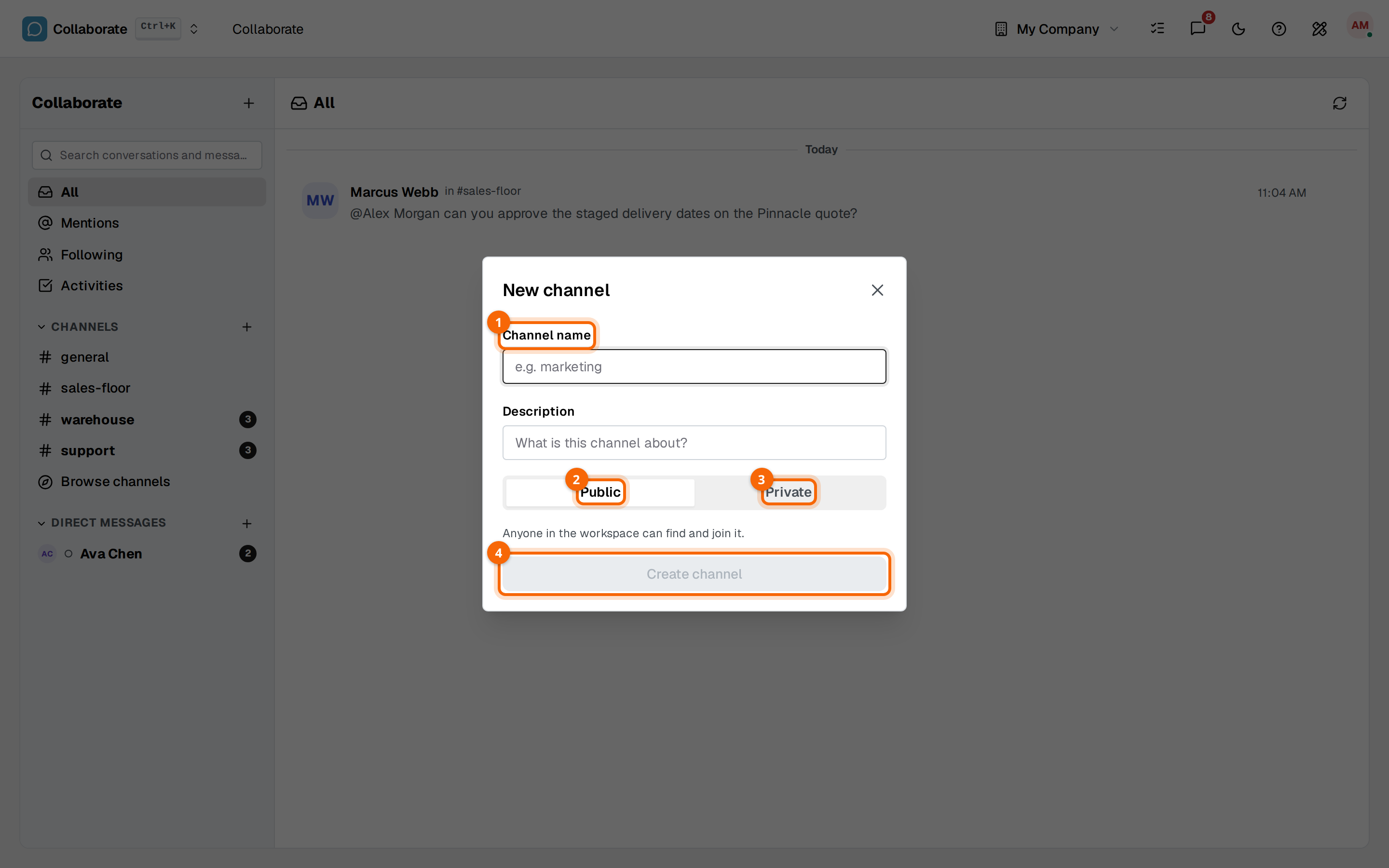
- Click + beside Channels.
- Enter a Channel name and, if you like, a Description saying what it is for.
- Choose Public (anyone in the workspace can find and join it) or Private (only people who are added can see it).
- Click Create channel. You are its owner.
Find and join a channel
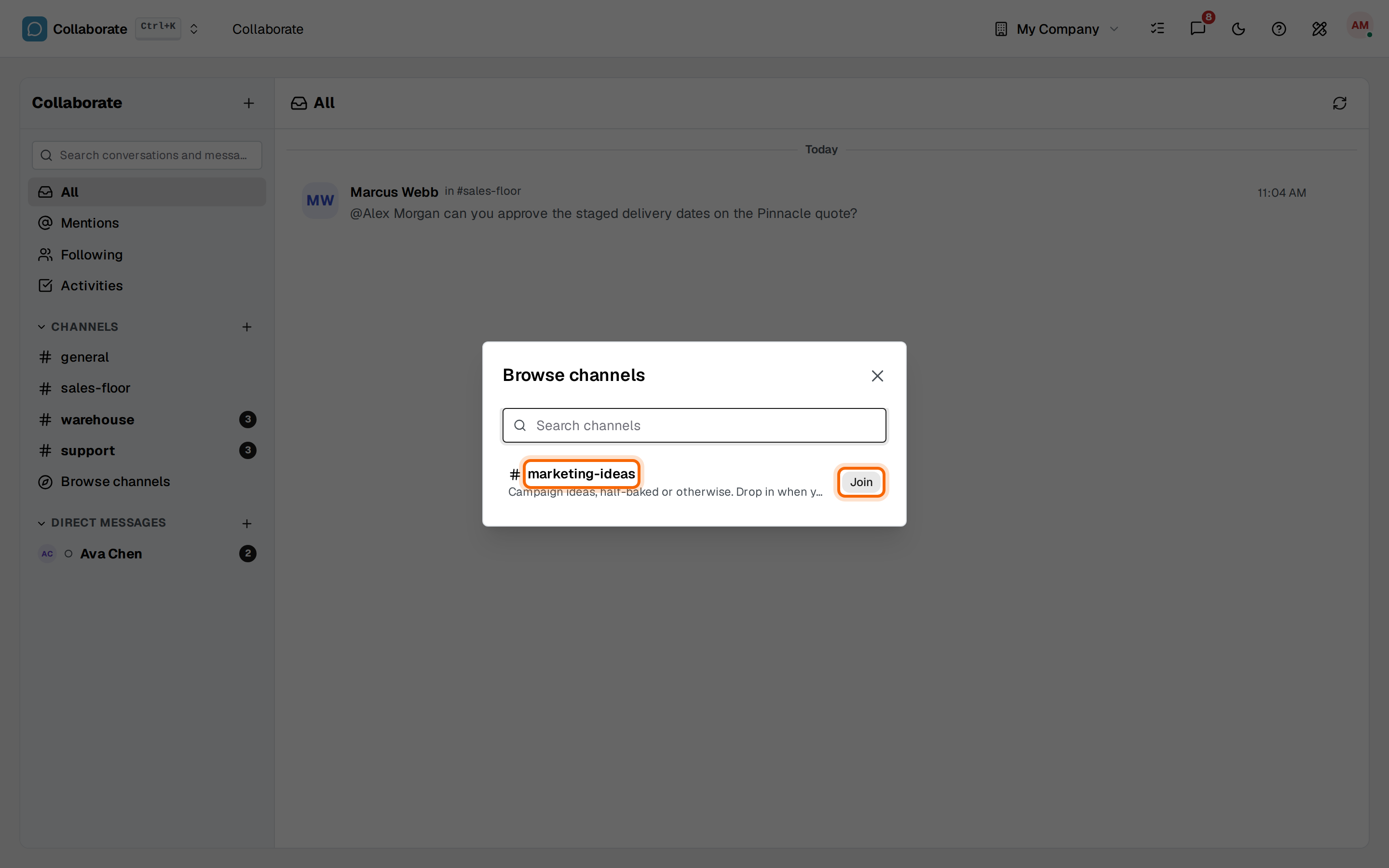
Click Browse channels under your channels to see every public channel you're not in. Click Join to join one, or click its name to read it first and then click Join channel under the conversation. A private channel is not listed: someone in it has to add you.
Add or remove people
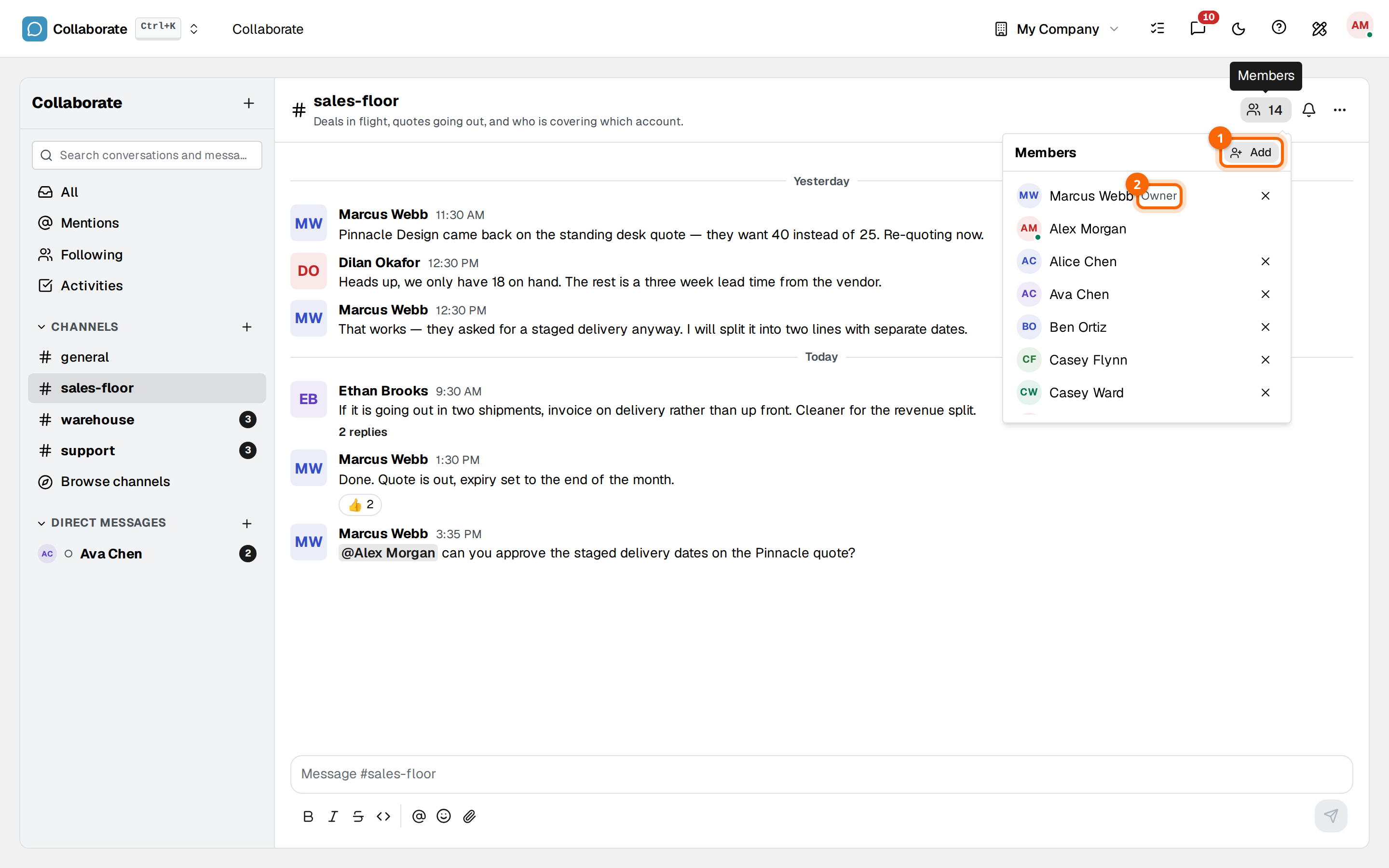
The Members button at the top of a channel shows who is in it. Anyone in the channel can click Add and choose colleagues. Only colleagues can be added: customers' portal accounts cannot. The channel's owner, or a workspace administrator, can also remove people.
Mute, rename, leave or archive
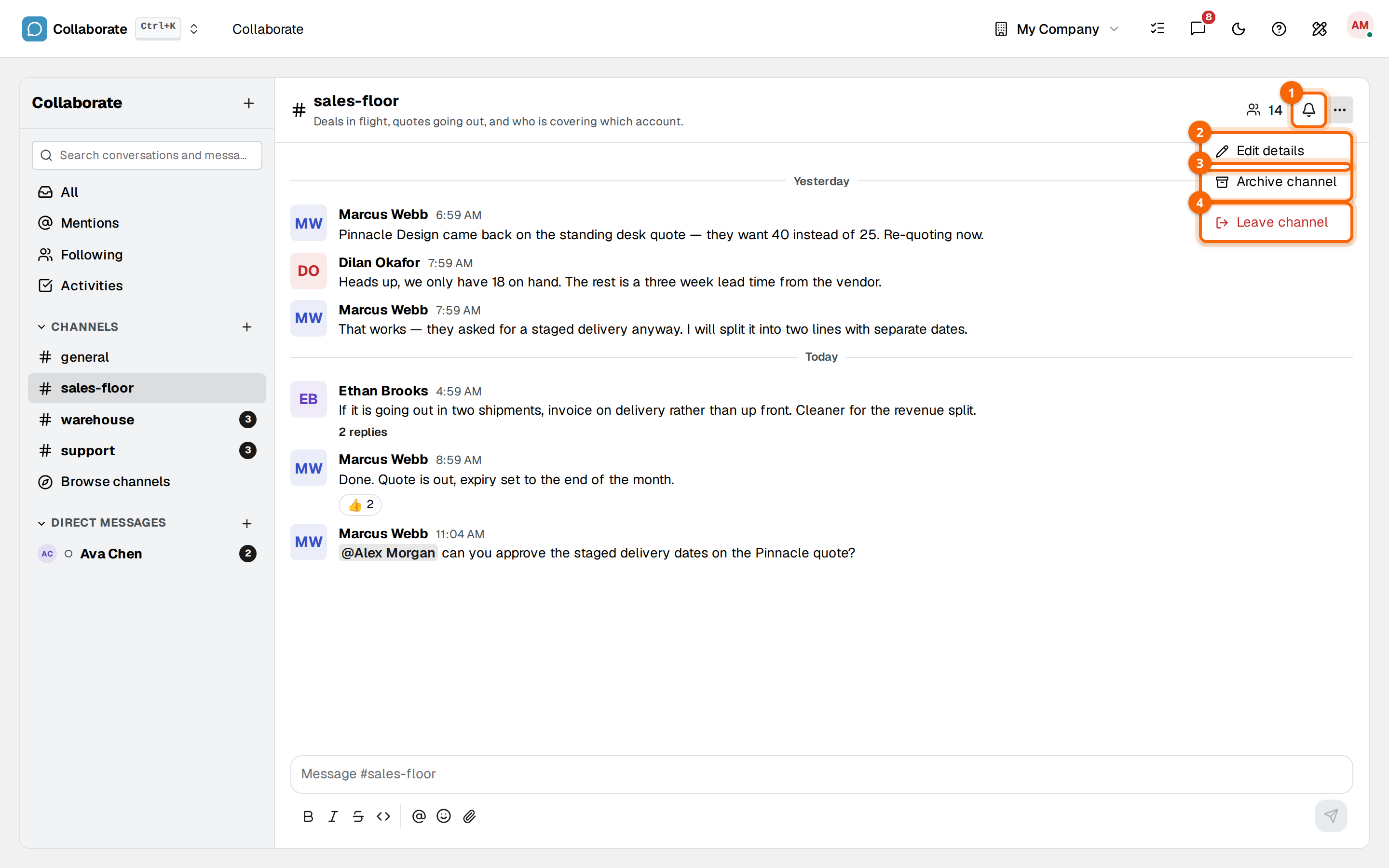
- Mute (the bell at the top) stops a busy channel's messages from counting as unread or notifying you. Mentions of you still do. Click Unmute to undo it.
- Channel options → Edit details renames the channel or changes its description. Anyone in the channel can do this.
- Channel options → Leave channel takes you out of it. If you were the owner, the person who has been in the channel longest becomes the owner. To get back into a private channel, someone has to add you again.
- Channel options → Archive channel (owner or administrator only) closes the channel for everyone. It leaves everyone's list and no one can post in it, but its messages can still be found with search.
Related: How do I chat with my team?