How do I chat with my team?
Send messages in channels and direct messages, mention a colleague, attach files and find an old conversation.
Collaborate is where your team talks. Channels are shared rooms, one per team or topic, and direct messages are private conversations between two people.
Find your way around
Open Collaborate from the app launcher. The list on the left has three parts:
- Channels: the rooms you are in. A number shows how many messages arrived since you last looked, and a red number shows how many of them mention you.
- Direct Messages: your one-to-one conversations. A green dot means that person is online right now.
- The search box at the top: type part of a channel's name or a person's name to narrow the list, or the start of a few words from anything that was said to search the messages themselves — deliv truck finds "the delivery truck is late". The results include conversations on records too: notes and messages on a customer, an order or a ticket, as long as you can open that record. Click a chat message to jump straight to it, or a record's conversation to open it beside the feed, where you can reply.
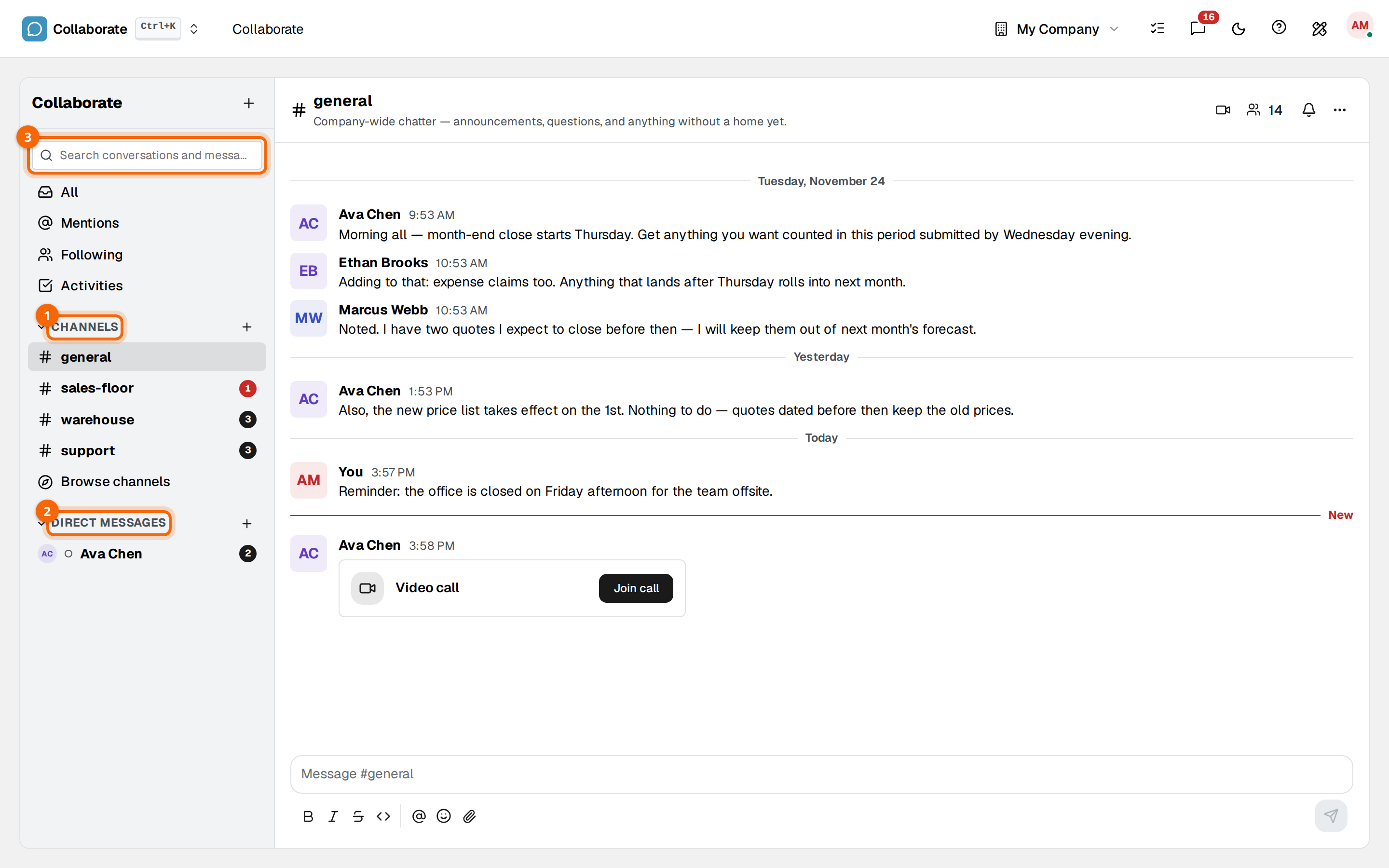
Above the channels, All, Mentions, Following and Activities show what happened on the records you work with. Mentions also lists every chat message that mentions you.
Send a message
- Click a channel or a person.
- Type your message in the box at the bottom. Enter sends it, and Shift + Enter starts a new line. Select text to make it bold, italic, crossed out or code.
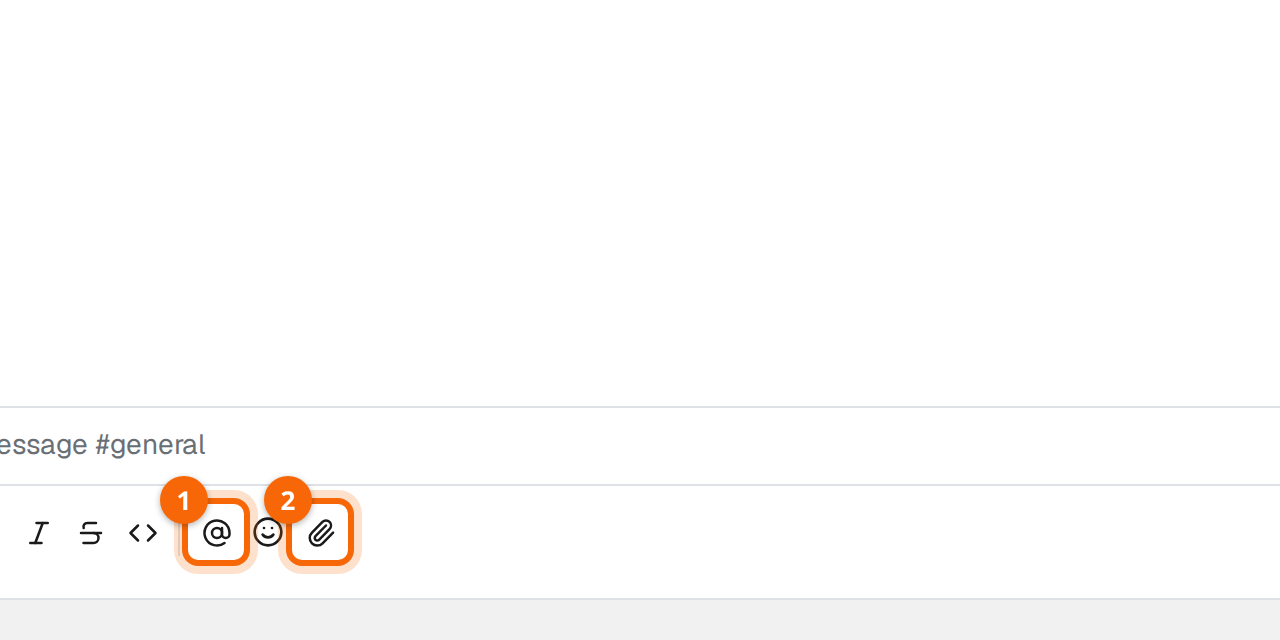
- To get someone's attention, type @ followed by their name, or click Mention someone. They are notified even if they have muted the channel. You can only mention people who are in the conversation.
- To share a file, click Attach files, or paste or drop it into the message box. Images show in the conversation, and other files appear as a link to open.
Start a video call
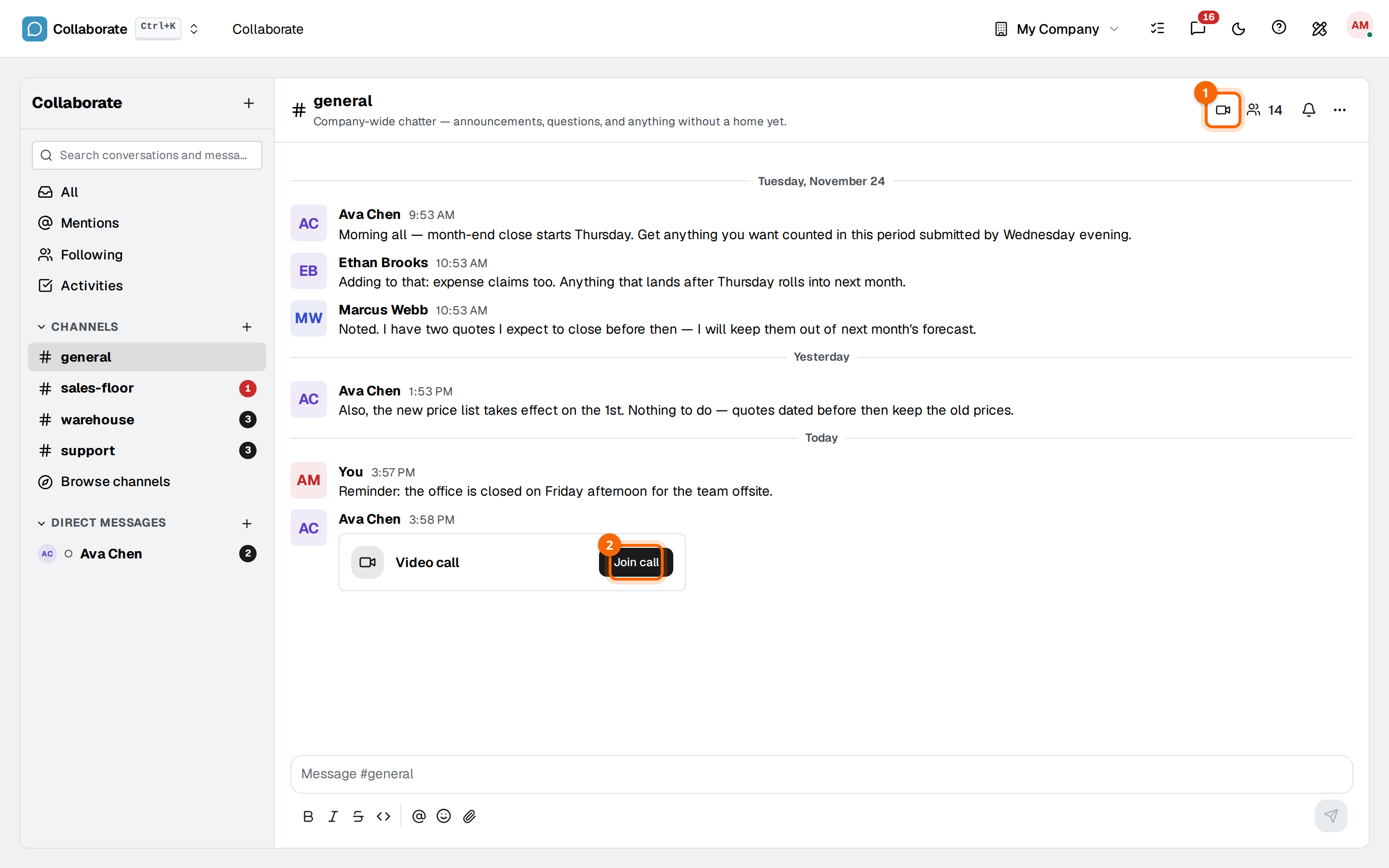
If the Meetings app is installed, click Start call at the top of a channel or direct message. The call opens in a new tab, and a card with Join call appears in the conversation. Everyone in it is notified, including people who aren't looking at it right now. The call uses the video service chosen in the Meetings settings, and appears in everyone's calendar as a meeting happening now.
Start a direct message
Click + beside Direct Messages and choose a colleague. If you already have a conversation with them, it opens. If you choose yourself, you get a private space for your own notes.
Answer from the feed
All, Mentions and Following show one row per conversation, with its latest message and how many you haven't read. Click a row to open the conversation beside the feed. A live chat opens as a chat you can answer straight away.
On any other record, you can reply when someone else wrote last. Your reply is the same kind as what you're answering:
- Answering a teammate's internal note gives a note. They're notified, and only your team can see it, even on a record a customer follows.
- Answering a message gives a message. It goes to the person who wrote it and the record's followers, and the line above the box names them.
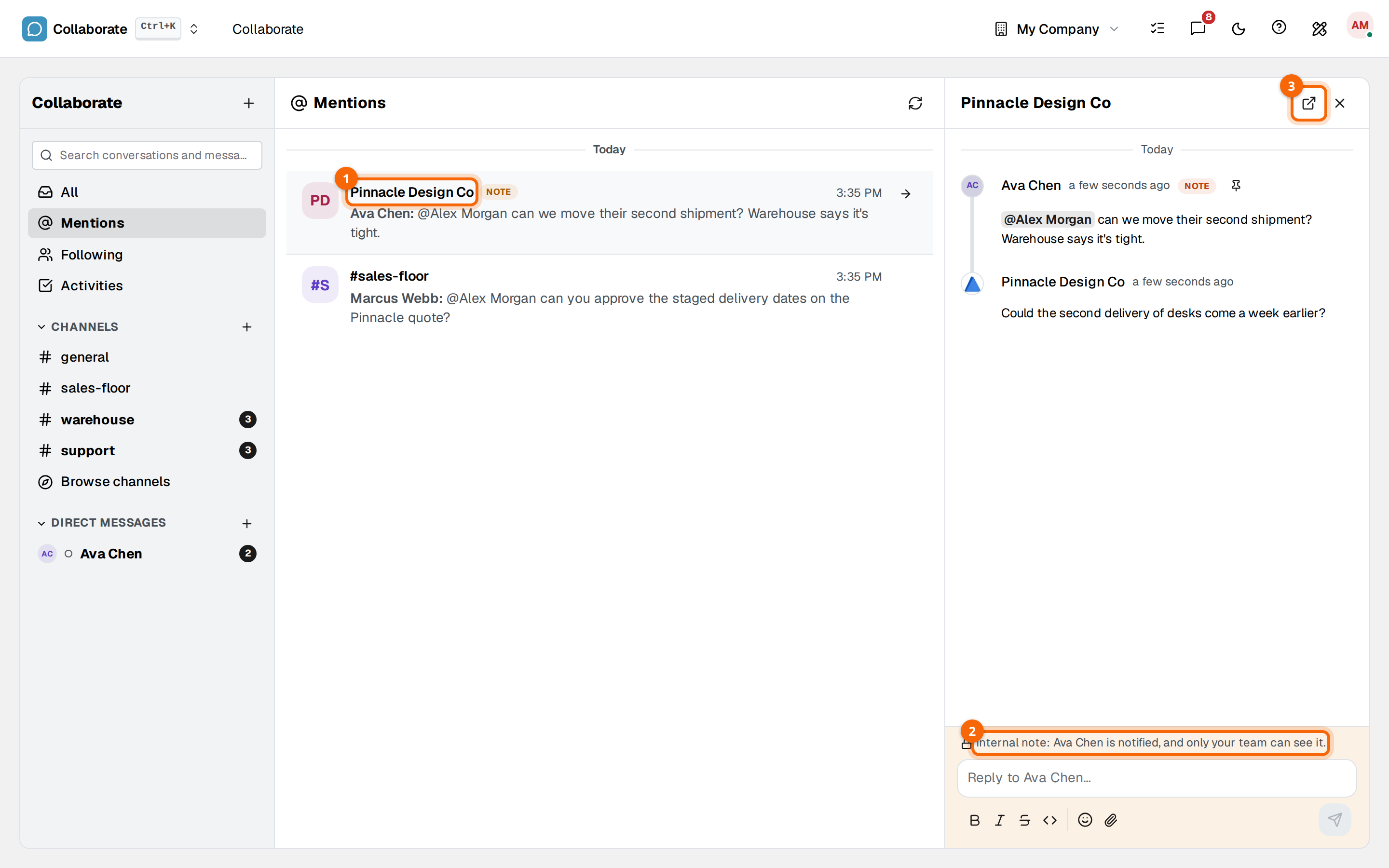
You can mention a colleague with @ and attach files, just as on the record. To write something new, such as a note when the last word was yours, click Open record.
When you're away
A direct message, a mention of you, or a reply in a thread you're part of shows a notification wherever you are in the app. It also reaches your phone or desktop if you have allowed notifications. Everything else waits for you as an unread count. A conversation you're reading in another tab, or in a window you've switched away from, stays unread until you come back to it.
Related: How do I create, join and manage a channel? · How do I reply in a thread, react, or edit a message?