How do I make records need approval?
Create an approval rule — which records it applies to, what it blocks until approved, and who approves.
An approval rule makes certain records wait for someone's sign-off. You choose the kind of record (a vendor, a purchase order, an expense), which of them need approval (orders over $10,000), what they can't do until approved (be confirmed), and who approves.
1. Create the rule
Go to Approvals → Setup, click Approval Rules, then New.
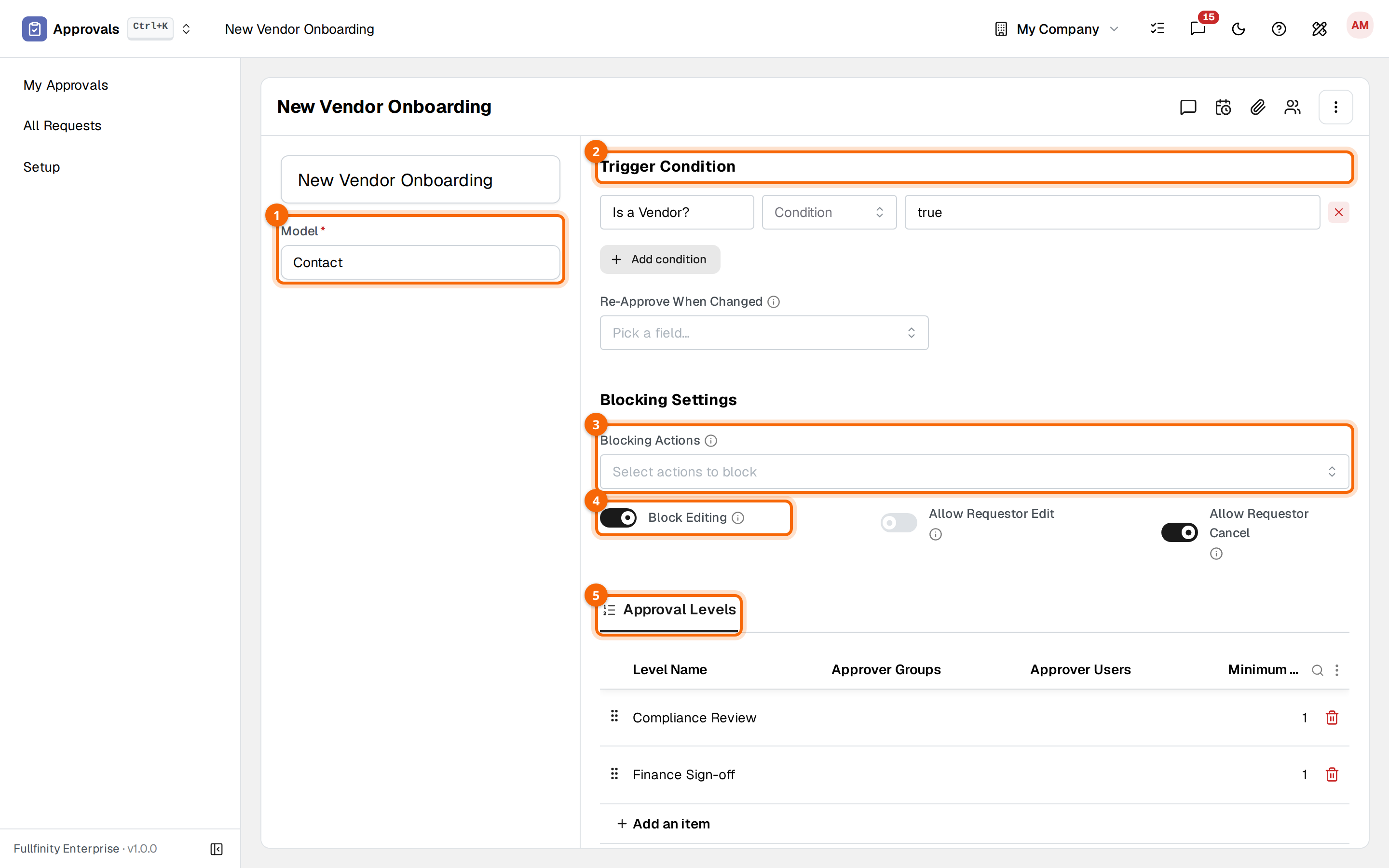
- Name the rule and choose the Model — the kind of record it applies to. Company limits it to one company; leave it empty for all.
- Trigger Condition — which records need approval. Build it like a filter: Amount Total is greater than 10000. Leave it empty and every record of that kind needs approval.
- Re-Approve When Changed — once a record is approved, editing it needs approval again only when one of the fields the trigger condition checks changes, or one of the fields you list here. Add the fields the approval is really about (Amount Total, Vendor) so changing a note or a phone number doesn't send an approved record back to the approvers.
- Blocking Actions — the buttons that stop working until the record is approved, such as confirming or posting.
- Block Editing — nobody but the approvers can change the record while it waits. Allow Requestor Edit still lets the person who raised it edit it; Allow Requestor Cancel lets them withdraw the request.
- On the Approval Levels tab, add at least one level — who approves. See How do I choose who approves, and in how many steps?
2. What happens next
Whenever a record of that kind is saved and matches the condition, an approval request is raised for it and the first level's approvers are emailed. A record has one request waiting at a time.
To pause a rule, archive it from its ⋮ menu.
Was this article helpful?